You hit send. The recipient never gets it. Back comes a wall of text with something like
550 5.7.26buried in it, and now you have to figure out which part to actually read.
Most pages on this topic give you a flat list of errors and a vague “check your DNS.” That’s not enough when a real campaign is bouncing and a customer’s password reset hasn’t landed. So this guide does it differently. We cover what the code is actually telling you, where to find the full response inside SMTP2GO, how to classify what you’re looking at in about 30 seconds, and what to do next. The whole thing is built from years of running production SMTP relays, debugging real bounces, and helping people migrate off other providers.
Quick answer: How to read an email delivery error
If you only read one section, this is the one.
- 4xx errors are temporary. Retry, then investigate if they persist.
- 5xx errors are permanent for that message. Fix the cause before resending.
- The middle number tells you the category. 5.1.x is the recipient address, 5.2.x is the mailbox, 5.4.x is routing or DNS, 5.7.x is policy, authentication, or spam.
- Always read the human-readable text that follows the codes. That’s where the receiving server tells you what it actually wants.
So 550 5.1.1 The email account you tried to reach does not exist decodes as: 5 means permanent, 5.1.1 means recipient address, and the text confirms it’s a non-existent mailbox. Remove the address, move on.
That’s the diagnostic shortcut. Everything below is the long version.
Table of contents
- What is an email delivery error?
- Hard bounce vs soft bounce
- How to read an SMTP error message
- Where to find delivery errors in SMTP2GO
- Common email delivery errors by cause
- A 7-step troubleshooting workflow
- How to prevent future delivery errors
- When to contact SMTP2GO support
- FAQ
What is an email delivery error?
An email delivery error is the response a receiving mail server sends back when something prevents your message from being accepted, delivered, or filed in the recipient’s inbox. It could be a typo in the address. It could be a content filter at Gmail. It could be that your DKIM record never propagated to the right nameservers.
A few terms get used interchangeably. Worth pulling them apart so you know exactly what you’re looking at:
- Delivery error / non-delivery report (NDR). The umbrella term for any rejected, deferred, or undeliverable send.
- Bounce. A delivery failure where the receiving server explicitly refuses the message. Hard bounce is permanent. Soft bounce is temporary.
- SMTP error code. The three-digit numeric response the receiving server uses to explain itself. Defined in RFC 5321.
- Enhanced status code. The three-part dotted code (5.1.1, 4.2.2, 5.7.26) defined in RFC 3463. Adds diagnostic detail to the base code.
- Deferral. The receiving server has temporarily refused the message and asked you to retry later. Greylisting, throttling, and “go slow” queues all fall into this category.
If you can tell which of those you’re dealing with inside the first 30 seconds, you save yourself a lot of pain.
Hard bounce vs soft bounce
A hard bounce is a permanent failure. The address doesn’t exist, the recipient domain has no MX record, or the recipient’s server has refused you for policy reasons that won’t change.
A soft bounce is a temporary failure. The mailbox is full, the recipient’s server is down for maintenance, or you’ve been deferred for rate-limiting reasons.
Example of a hard bounce:
550 5.1.1 The email account that you tried to reach does not exist
Example of a soft bounce:
452 4.2.2 The recipient's mailbox is over its storage quota
What SMTP2GO does automatically. Once a recipient address hard-bounces through our network, we add it to your account’s suppression list and stop sending to it. This protects your sender reputation from repeated invalid sends, which is one of the fastest ways to wreck a domain’s standing with Gmail and Microsoft. You can review and unblock addresses any time from Reports > Suppressions, but don’t unblock blindly. If the address bounced because the mailbox genuinely doesn’t exist, you’ll get another bounce.
For a deeper read on the difference, see Understanding hard bounces, soft bounces, and rejected emails.
How to read an SMTP error message
When a receiving server rejects your message, it sends back a line that looks something like this:
550-5.7.26 Unauthenticated email from example.com is not accepted due to
550-5.7.26 the sender domain's DMARC policy. Please contact the administrator
550 5.7.26 of example.com for more information.
That string contains three useful things.
The base SMTP reply code (550). First digit is the headline. 2xx is success, 3xx means “send more,” 4xx means “temporary refusal, try later,” 5xx means “permanent refusal for this attempt.”
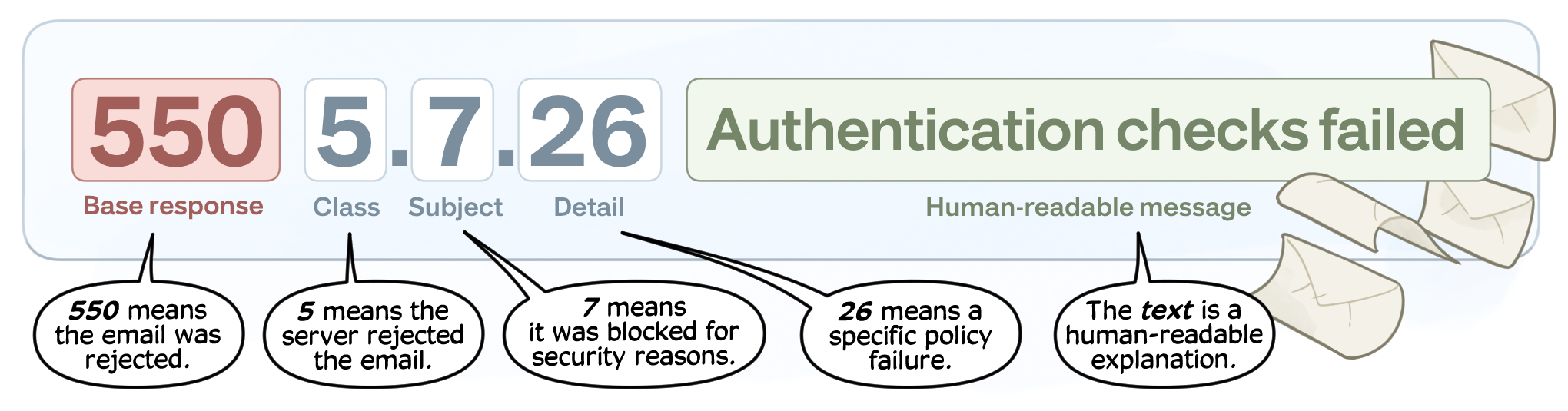
The enhanced status code (5.7.26). More granular. Defined in RFC 3463. Read it as Class. Subject. Detail:
- Class. 2 = success, 4 = persistent transient failure, 5 = permanent failure.
- Subject. 0 = other or undefined, 1 = address, 2 = mailbox, 3 = mail system, 4 = network or routing, 5 = mail delivery protocol, 6 = message content, 7 = security or policy.
- Detail. The specific sub-condition within that subject.
The human-readable text. “Unauthenticated email from example.com is not accepted due to the sender domain’s DMARC policy.” Read this every time. Different ISPs use different wording for the same underlying failure, and the wording is usually where the real fix lives.
In the example, you’re looking at a permanent rejection for DMARC failure. The fix is to publish SPF and DKIM that align with your From domain, not to retry. For the full DMARC walkthrough, see What is DMARC? and the 2026 guide to Gmail and Yahoo’s inbox protection rules.
Where to find delivery errors in SMTP2GO
This is the part most guides skip. You can’t fix an error you can’t actually see in detail. Here’s where the information lives inside the SMTP2GO control panel.
Reports > Activity. Every send shows up with its status, recipient, timestamp, and the raw SMTP response when it’s a bounce or rejection. Filter by status (Bounced, Rejected, Deferred) to surface the messages you need to look at. Expand any row and you’ll see the full server response string, not a sanitized summary.
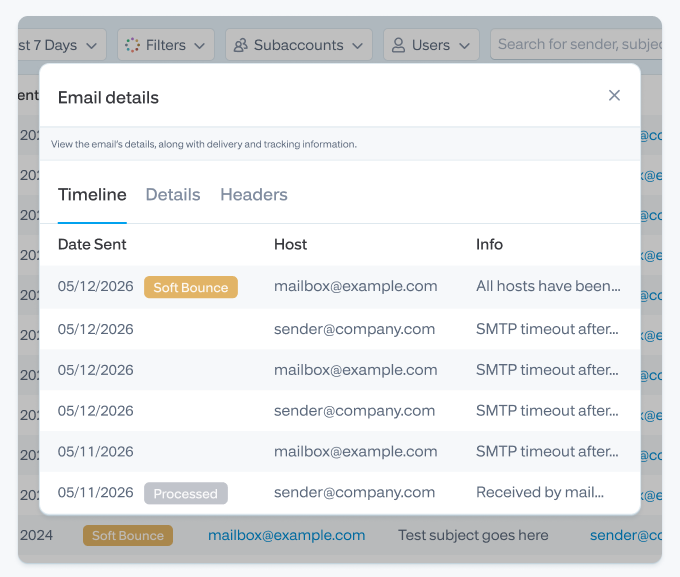
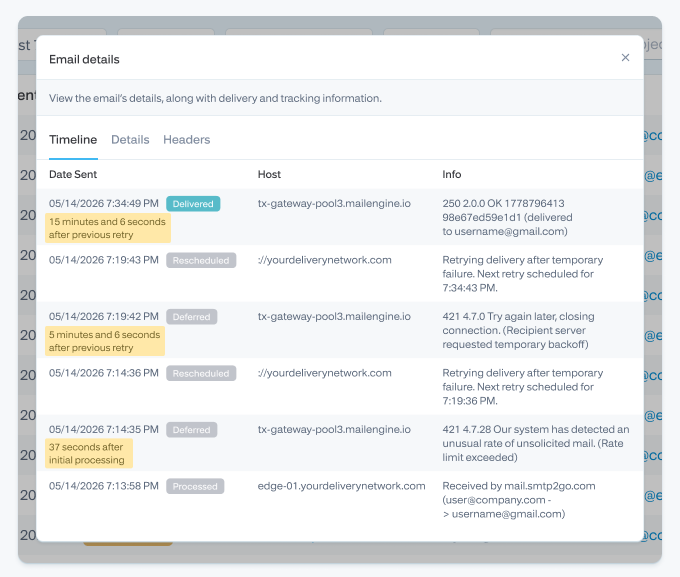
Timeline. Click any individual message and you get a chronological view of every attempt, deferral, retry, and final status. Useful for diagnosing greylisting or “go slow” queue behavior, where you want to see the gap between attempt 1 and attempt 4 to understand what the recipient server is asking for.
Suppressions. Reports > Suppressions shows every address SMTP2GO has automatically blocked, along with the reason. You can unblock addresses individually, export the list, or manage suppressions programmatically through the API. For a fuller picture of how the suppression system works, see Understanding suppressions.
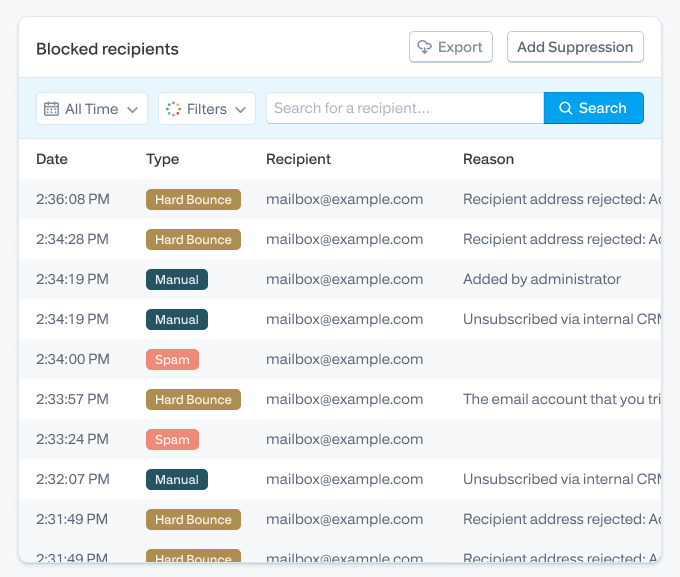
Archiving and activity history. Activity is retained by default for a fixed window. If you need a longer window for audit or compliance, increase the retention period or turn on Archiving. See Storage policies and Increase activity storage duration for the specifics.
Common email delivery errors by cause
Reference section. Errors below are grouped by root cause, not by digit. Scan the family that matches your symptom and jump to the fix.
Recipient and address errors (5.1.x family)
The recipient address itself is the problem. Wrong, gone, or actively refusing you.
| Error | Type | What it means | What to check | Fix |
|---|---|---|---|---|
550 5.1.1 No such user / Mailbox unavailable | Hard | The email address doesn’t exist on the recipient’s server. Usually a typo, an old contact, or a former employee | Re-verify the address. Check for typos and trailing spaces | Remove the address from your list. Don’t keep retrying |
550 5.1.10 Recipient not found | Hard | Microsoft variant of “no such user” | Re-verify the address | Remove and move on |
554 Not a valid recipient | Hard | Yahoo variant | Re-verify the address | Remove |
Previously hard-bounced | Hard (suppressed) | SMTP2GO has already blocked this address because of a prior hard bounce | Reports > Suppressions | Only unblock if you have new evidence the mailbox now exists |
[recipient] has asked to not receive your email | Hard (suppressed) | The recipient marked one of your past messages as spam. SMTP2GO now blocks further sends to that address | Reports > Suppressions | Investigate why they flagged you. Reach out via another channel if appropriate before unblocking |
Mailbox and storage errors (5.2.x family)
The mailbox exists but can’t accept the message right now.
| Error | Type | What it means | What to check | Fix |
|---|---|---|---|---|
452 4.2.2 Mailbox over quota | Soft | The recipient’s mailbox is full. SMTP2GO will retry automatically | Nothing on your end | Wait. Contact the recipient out-of-band if urgent |
552 5.2.2 Mailbox full | Hard at threshold | Some providers escalate the full-mailbox state to a permanent reject | Try once more after 24 hours | If still failing, suppress and notify out-of-band |
550 5.2.0 / 5.2.1 Mailbox disabled | Hard | The mailbox is locked, disabled, or has been removed | Re-verify the address | Remove from list |
DNS, MX, and routing errors
The network and DNS layer is the problem, not the recipient or your content.
| Error | Type | What it means | What to check | Fix |
|---|---|---|---|---|
450 DNS lookup fail | Soft | The recipient domain has no valid MX record at the moment of lookup. Often transient | Run a DNS lookup on the recipient’s domain at MXToolbox, use the “DNS Propagation” option | If it’s a real MX issue, the recipient needs to fix their DNS. If it’s transient, SMTP2GO will retry on schedule |
5.4.4 Unable to route | Soft or Hard | No route to the recipient’s mail server | Check the domain has functioning MX records | Wait for transient. Contact the recipient if persistent |
Domain has no valid MX record | Hard | The recipient domain isn’t accepting email at all | DNS lookup | Remove the address from your list |
Sender authentication and sender-domain errors
The family people get wrong most often. Almost always fixable from your side. Often a 30-minute job.
| Error | Type | What it means | What to check | Fix |
|---|---|---|---|---|
550 You are not allowed to send from that email address #SMTP# | Hard | Your SMTP2GO account has a sender restriction in place | Restricted Senders on your dashboard | Adjust the restriction list or add the sender domain |
550 5.7.750 Client blocked from sending from unregistered domains | Hard | You’re trying to send from a domain you haven’t verified inside SMTP2GO | Sender Domain records | Verify the sender domain with the supplied CNAME or TXT records |
503 unable to verify sender address | Hard | The receiving server can’t verify your sender address has a working mailbox to receive NDRs | Your sending email exists, has MX, and can receive mail | Walkthrough at Troubleshooting “unable to verify sender address” |
550 5.7.26 Unauthenticated email... DMARC policy | Hard | Your message failed DMARC alignment at the recipient | Your SPF, DKIM, and DMARC records | Align SPF and DKIM with your From domain. Check your DMARC policy isn’t stricter than your auth coverage. See Power up your DMARC policy |
550 relay access denied. Please authenticate | Hard | The server requires SMTP authentication and isn’t getting valid credentials | Username, password, and sender domain verification status | Authenticate properly. If using a sender domain, re-verify it |
#< #5.0.0> #SMTP# | Hard | Generic sender domain DNS issue | Sender Domain records page | Re-verify your records. Check propagation |
Spam, blacklist, and policy rejections (5.7.x family)
The receiving server has decided you’re risky, blocklisted, or your content looks suspicious.
| Error | Type | What it means | What to check | Fix |
|---|---|---|---|---|
552 5.2.0 Suspected spam IB703 (Bigpond) | Hard | Bigpond rejects when multiple recipients are in the TO header | TO header structure | Send to one address in TO. Put others in BCC or CC |
521 5.2.1 AOL will not accept delivery | Hard | AOL has blocked you. Usually content, sometimes reputation | Run your message through Mail-Tester. Check IP reputation | Improve content. Verify SPF, DKIM, and DMARC are aligned |
554 5.7.1 Service unavailable, blocked using Spamhaus | Hard | Your sending IP is on the Spamhaus blocklist | Blocklist check | Read How to escape an email blocklist. On a shared SMTP2GO IP, contact support |
550 5.7.26 / DMARC reject (other providers) | Hard | Recipient’s DMARC enforcement is rejecting unaligned mail | SPF, DKIM, DMARC alignment | Align auth records. See Gmail and Yahoo rules |
421 4.7.28 Unusual rate of unsolicited mail (Gmail) | Soft (rate limit) | Gmail has rate-limited you because of complaint signal or a volume spike | Recent volume, complaint rate, content | Slow down. Investigate complaint sources. Fixing spam complaints |
This email matches a profile the Internet community may consider spam | Hard | Content trips spam filters | Mail-Tester. Look for spam-trigger words, excessive caps, broken HTML, missing unsubscribe footer | Rewrite. Add unsubscribe footer. Fix HTML |
Connection, port, and rate-limit errors
When the conversation between your application and SMTP2GO’s relay never gets going, or breaks under load.
| Error | Type | What it means | What to check | Fix |
|---|---|---|---|---|
Connection timed out | Connection | Your application can’t reach the SMTP2GO relay on the port you’re trying | Firewall rules and port number | Try a different port. SMTP2GO supports 25, 8025, 587, 80 with TLS, and 465, 8465, 443 with SSL. ISPs commonly block port 25 outbound. See the ports infographic |
Too many connections | Concurrency | You’ve opened more than 40 concurrent SMTP connections | Your sending application’s connection pool | Reduce concurrency. Consider SMTP pipelining via Postfix |
No immediate delivery: load average | Soft (queued) | The SMTP2GO relay queued your message during a temporary load spike | Nothing on your end | The message will be sent within minutes. No action required |
Put into go slow queue | Soft (deferred) | The recipient server has asked us to slow down. Common with Yahoo, Microsoft, and Apple under volume pressure | Sender Domain records, sending volume, complaint rate | Check authentication. Reduce concurrency. Look at sender reputation. See Slow sending speeds |
Account, suppression, and sender-restriction errors
These come from SMTP2GO itself rather than the recipient.
| Error | Type | What it means | What to check | Fix |
|---|---|---|---|---|
Previously hard-bounced | Suppression | SMTP2GO has blocked this recipient because of a prior bounce | Reports > Suppressions | Only unblock if the address is now valid |
550 This address is blocked by manual selection | Suppression | The address has been manually blocked, often via API | Reports > Suppressions | Unblock via the blocklist API or contact support |
We've found lots of messages from smtphost.com | Reputation review | Your account’s traffic is triggering an internal review | Recent volume, complaint rate, content patterns | Contact SMTP2GO support with details. Usually resolved within hours |
550 Maximum line length exceeded (RFC 5322 2.1.1) | Format | Your message body has a line longer than 998 characters without a break, violating RFC 5322 | MIME structure, especially long URLs without line breaks | Update sender domain records. Turn on the Unsubscribe Footer (it can be left blank) to push the body through SMTP2GO’s RFC normalization |
Device-specific errors (printers, scanners, MFCs)
A specific corner of the SMTP error world that other guides ignore. SMTP2GO sees a lot of this because plenty of customers route their copiers, scanners, security cameras, and phone systems through us.
| Error | Type | What it means | What to check | Fix |
|---|---|---|---|---|
554 5.6.1 Messages of type message/partial are not supported | Hard | The copier or scanner is splitting the attachment into multiple parts. Modern mail servers reject this for security reasons | Scanner’s “multipart” or “split email” setting | Turn off the multipart option. Increase scan size to roughly 10MB. Fixes for scan-to-email |
535 Authentication failed (legacy MFC) | Auth | Common on older Brother, Konica, and Ricoh devices using outdated TLS settings | TLS version the device supports, port in use | Use port 2525 with STARTTLS, or upgrade the firmware. SMTP2GO retired TLS 1.0/1.1 in line with this guide |
Connection refused on port 25 | Connection | The device’s ISP or network is blocking port 25 | Network egress rules | Switch the device to port 2525 or 587 |
If you’re working through a specific device, trouble with your printer or scanner? walks through the common configurations.
A quick note from the trenches. The single most common scanner issue we see is the message/partial error above. Default scan size on a five-year-old Konica is 2MB. The PDF the office wants to email is 6MB. The copier obediently splits it into three RFC-compliant message/partial pieces, and almost no modern mail server will accept those because of legacy security exploits. The fix takes about two minutes. Scan size up, multipart off. Same issue, same fix, on hundreds of customer devices.
A 7-step troubleshooting workflow
When something bounces and you’re not sure where to start, run this sequence.
Step 1. Copy the full SMTP error message. Not the summary in your campaign tool. The raw response. In SMTP2GO, that’s in Reports > Activity. Expand the row and read the “Server response” field. The full string matters because the human-readable portion is often where the real hint lives.
Step 2. Classify the code family. Is it 4xx or 5xx? What’s the enhanced code? Use the rules at the top of this page. Inside 30 seconds you should know whether this is a retry, fix-recipient, fix-auth, fix-content, or fix-reputation problem.
Step 3. Check the recipient and address. Re-verify the address. Is it a real mailbox? Could it be a typo? Is it on your suppression list because of a prior bounce? If yes, was the prior bounce legitimate?
Step 4. Check DNS, MX, SPF, DKIM, and DMARC. Use MXToolbox and SMTP2GO’s Sender Domain page. Are your records published, propagated, and aligned with your From domain? DMARC alignment is the most common authentication failure mode at Gmail and Yahoo since their 2024 rule changes.
Step 5. Check content, links, and attachments. Run the message through Mail-Tester and read the report. Is there a broken HTML link, a shortened URL, an oversized attachment, a missing unsubscribe footer, excessive capitalization? For real-world content patterns that trip filters, see How to stay out of the spam folder.
Step 6. Check ports, concurrency, sender restrictions, and suppressions. Is the application using the right port? Is the connection limit being respected (max 40 concurrent for most accounts)? Has someone added a Restricted Sender rule? Is the recipient on the suppression list?
Step 7. Retry, suppress, or escalate. For 4xx, retry per the schedule. For 5xx, fix the cause first. If you’ve worked through steps 1 to 6 and still can’t isolate the issue, send SMTP2GO support the details below.
How to prevent future delivery errors
The errors you’ve seen are the symptom. Most senders can cut their bounce rate substantially by tightening five things.
Verify your sender domain. This is the single fastest win. SMTP2GO walks you through SPF, DKIM, and DMARC records during setup. Don’t skip the DMARC step. As of February 2024, Gmail and Yahoo require DMARC for senders above 5,000 messages per day to their networks, and that bar is moving toward all senders. The 2026 enforcement picture keeps tightening; we covered the current state in Gmail and Yahoo’s inbox protection rules.
Keep your list clean. Periodically remove role-based addresses (info@, admin@), suppress invalid mailboxes, and use double opt-in for new signups. The best practitioners we work with treat list hygiene as a monthly ritual, not a one-off project. See Benefits of a clean email list and Email scrubbing.
Watch ports and authentication. Microsoft retired basic auth for SMTP AUTH on Exchange Online in 2022, and Office 365 has been phasing it out across the board since. If you’re integrating an MFC or legacy application that authenticates with username and password, route it through SMTP2GO instead of trying to keep the device talking to Microsoft direct. Our post on the end of Microsoft basic auth has the migration details.
Separate transactional from marketing. If you send both, route them through separate sender domains or separate IPs. One bad marketing campaign shouldn’t take down your password reset emails. SMTP2GO supports this through sub-accounts and IP pooling. See Reseller accounts and sub-accounts and Dedicated or shared IP address?.
Monitor your suppression list and complaint rate. A complaint rate above 0.3% with Gmail or Microsoft is the line you don’t want to cross. Watch it weekly. If you see it rising, find the campaign or message responsible before the receiving servers start rate-limiting you. The newer Reports & Metrics tools in your dashboard make this trivial, walkthrough here.
For the longer playbook, see Improve your email deliverability and The bounce rate survival guide.
When to contact SMTP2GO support
Most errors above are fixable from your end. When they’re not, send us the following and we can usually pinpoint the cause inside a few minutes:
- The full SMTP error message (the raw “Server response” string from Activity)
- The recipient domain (just the domain, not the full address, for privacy)
- Your sender domain
- The timestamp of the failed send
- The message ID, if available
- A screenshot or export from the Activity log
- What changed recently. New campaign, new sender, new DNS, new integration
Support is 24/7, with real humans, based out of New Zealand and London.
FAQ
What does a 550 error mean?
550 is the SMTP code for a permanent rejection. The detail of why depends on what follows. 550 5.1.1 is a non-existent recipient. 550 5.7.1 is a policy block. 550 5.7.26 is DMARC. Always read the full string, not just the 550, dedicated 550 error guide for variants.
What does a 421 error mean?
421 is a temporary refusal. The receiving server is asking you to come back later. Common reasons: rate limiting, server load, greylisting, or a sudden complaint spike. SMTP2GO retries automatically, so most 421s resolve on their own. If they don’t, the human-readable text after the code usually tells you why.
What does 5.7.1 mean?
5.7.1 is the enhanced status code for a delivery policy violation. The most common causes are DMARC failure, SPF or DKIM alignment problems, the recipient blocking you, or your IP being on a blocklist. Read the human-readable text after the code to narrow it down.
Should I resend after a soft bounce?
You don’t have to. SMTP2GO automatically retries soft bounces on a schedule with backoff. If a soft bounce becomes persistent, it eventually converts to a hard bounce and the address is suppressed. Manual resends from your application on top of that just add load.
Why does SMTP2GO block previously hard-bounced addresses?
Because retrying invalid addresses is one of the fastest ways to wreck your sending reputation. Most ISPs use bounce rate as a primary input to their spam classifier. By suppressing hard bounces automatically, SMTP2GO protects your IP and domain reputation. You can review and unblock entries from Reports > Suppressions if you have evidence the address now works.
Where can I see bounce details in SMTP2GO?
Reports > Activity for the message-level view, including the raw SMTP response. Reports > Suppressions for currently blocked addresses. Click any individual message to open the Timeline view if you want to see retry behavior across multiple attempts. The Reports and metrics walkthrough has more.
How can I tell whether the problem is my domain or the recipient’s server?
Start with the enhanced status code. 4.2.x or 5.2.x usually points at the recipient’s mailbox. 4.4.x or 5.4.x usually points at routing or DNS, which can be either side, often the recipient. 5.7.x typically points at your authentication or your sender reputation. 5.1.x is the recipient’s address. If you’re seeing the same error across many recipient domains, the cause is on your side. If you’re seeing it on one domain only, it’s on theirs.
What’s the difference between a delivery error and a bounce?
Every bounce is a delivery error. Not every delivery error is a bounce. A bounce is a generated response after a receiving server has refused you. A delivery error can also be a deferral (temporary refusal with retry expected), a connection failure (your application never reached our relay), or a post-acceptance filter event (the message was accepted by the recipient’s gateway and then quarantined by their internal filter).
That’s the page. Bookmark it, send it to whoever owns SMTP at your company, and run the workflow next time something bounces.
About the author

Simon Slade
Simon is a co-founder of SMTP2GO, launched in 2006 out of Christchurch, New Zealand. The idea was simple: a reliable way to send email from anywhere, even when local networks were blocking the usual ports. Twenty years on, SMTP2GO delivers for 35,000+ businesses across 130+ countries. SMTP2GO is ISO 27001 certified, GDPR compliant, an M3AAWG member, and a five-time Deloitte Technology Fast 500 company.