
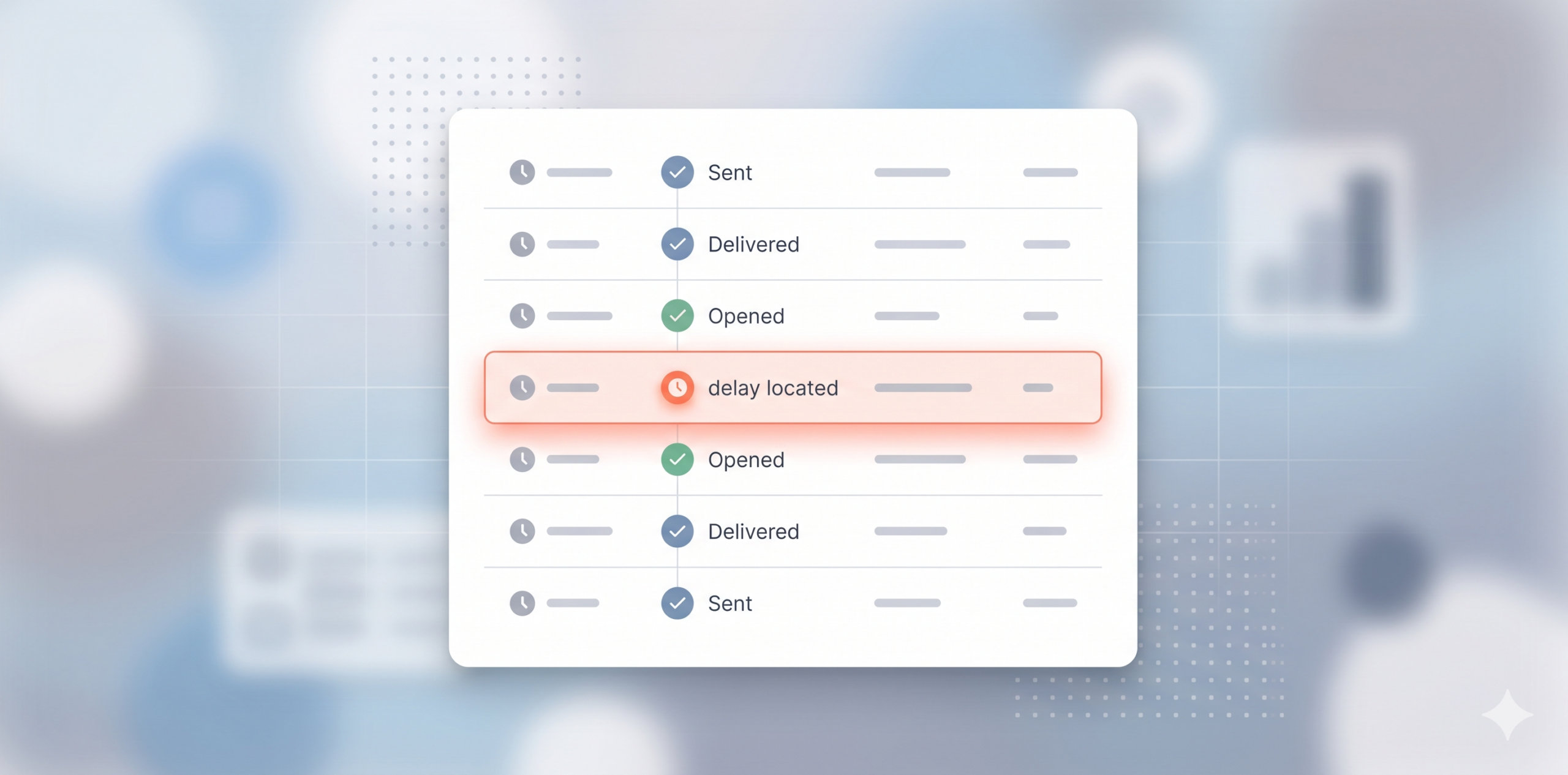
The short version: Most emails sent through a reputable provider land in seconds. But “slow” doesn’t always mean “broken.” A delay of a few minutes, or sometimes a few hours, can be completely normal depending on what’s going on at the receiving server. This guide shows you what counts as normal, what doesn’t, and exactly how to figure out where your delay is happening so you can fix it (or stop worrying).
On this page
- When to worry, and when not to
- What “delivered” really means
- How long a normal email actually takes
- A 5-minute diagnostic: where did the delay happen?
- The symptom-cause-action table
- Why emails get delayed: the real list
- What to do next, based on what you found
- How SMTP2GO helps you diagnose delays faster
- FAQ
When to worry, and when not to
Here’s the honest answer most articles dance around: email is not designed to be instant. The protocol it runs on (SMTP) was built to tolerate failures, retry messages, and accept temporary delays as a normal part of how mail moves. That tolerance is a feature, not a bug. It’s why an email rarely just disappears.
So when a message takes longer than expected, the right first question isn’t “what’s broken?” It’s “where in the pipeline is this delay sitting, and is that delay normal for this kind of send?”
Three rules of thumb:
A delay of a few seconds to a couple of minutes is the norm. If you’re sending through SMTP2GO and your account is healthy, this is what you should expect for the vast majority of mail.
A delay of a few minutes up to about an hour is often still normal, especially for the first email between a new sender and a new recipient (greylisting), for sends to a recipient server that’s busy, or for messages that triggered an extra round of spam scoring.
A delay of several hours, or repeated delays at the same step, is when it’s worth looking under the hood. That’s where the rest of this article comes in.
The 15-to-30-minute “this means something is wrong” rule you’ll see floating around the internet is too blunt. We’ve watched perfectly healthy mail get held for an hour by greylisting, then deliver fine forever after. Treat duration as a clue, not a diagnosis.
What “delivered” really means
Before we diagnose anything, it’s worth getting clear on what the word “delivered” actually means in your dashboard, and where it sits in the journey.
A typical email passes through five stages:
- Send. Your application or email client hands the message to SMTP2GO over an SMTP connection.
- Authentication and acceptance. SMTP2GO authenticates the connection, validates the message, and accepts it for sending.
- Routing and queueing. SMTP2GO looks up the recipient’s mail server, opens a connection, and either delivers or queues the message for retry if the recipient server isn’t ready.
- Recipient acceptance. The recipient’s mail server (Gmail, Microsoft 365, an on-prem Exchange, whatever it is) responds with a 2XX code accepting the message. This is the moment SMTP2GO marks it as “delivered.”
- Inbox placement. The recipient’s mail server then decides what to do with the message: inbox, promotions tab, junk, or held for further scrutiny. This part is no longer in your hands or ours. The important takeaway: “delivered” means the recipient server accepted the message. It does not mean the recipient sees it in their inbox at that exact second. Most of the time those two events are seconds apart, but at scale or under scrutiny, they can be hours apart. That’s the gap most “where’s my email?” questions live in.
If you want a deeper read on the path your messages take through our infrastructure, our SMTP relay overview walks through it.
How long a normal email actually takes
It depends on what kind of email you’re sending and who’s receiving it. A useful set of expectations:
Transactional email (password resets, receipts, magic links): seconds to a minute. Anything longer than five minutes for a single transactional message is worth investigating, because these are usually the highest-priority sends with the cleanest reputation profile.
Bulk or campaign sends: seconds to several minutes per message, but the campaign as a whole can take longer to complete. Recipient servers throttle inbound mail by sender, so a 100,000-message blast won’t all land at once. That’s not a delay, that’s the system working.
First-time send to a new domain or recipient: can take anywhere from a few minutes to an hour because of greylisting. The receiving server temporarily refuses the message and asks you to try again later. SMTP2GO handles the retry automatically, and once the recipient server has seen you behave properly, future sends to that domain go straight through.
Sends during recipient-side throttling: Gmail, Microsoft, Yahoo and others all rate-limit inbound mail per sender. If you’re sending faster than a recipient is willing to accept, the rest of the messages queue and arrive later. This can stretch delivery across hours for large campaigns. It’s expected behavior, not a fault.
Sends with reputation issues: delays grow longer as receiving servers apply more scrutiny. A sender with a damaged reputation will see consistently slower acceptance and more 4xx soft-deferrals. If this describes you, our guide on how to improve your sending reputation is the right next read.
In short: a delay only becomes a problem when it’s longer than expected for the type of send, repeats across messages, or pairs with a specific error you can see in your logs.
A 5-minute diagnostic: where did the delay happen?
When something feels off, run these four checks in order. They isolate the delay in under five minutes.
Step 1: Check the status page first
Before you spend an hour debugging your end, confirm the problem isn’t ours. Check the SMTP2GO status page for any active incidents. If we’re aware of a delivery delay on our infrastructure, you’ll see it there and you’ll know to wait it out instead of changing your config.
Step 2: Find the message in your Activity log
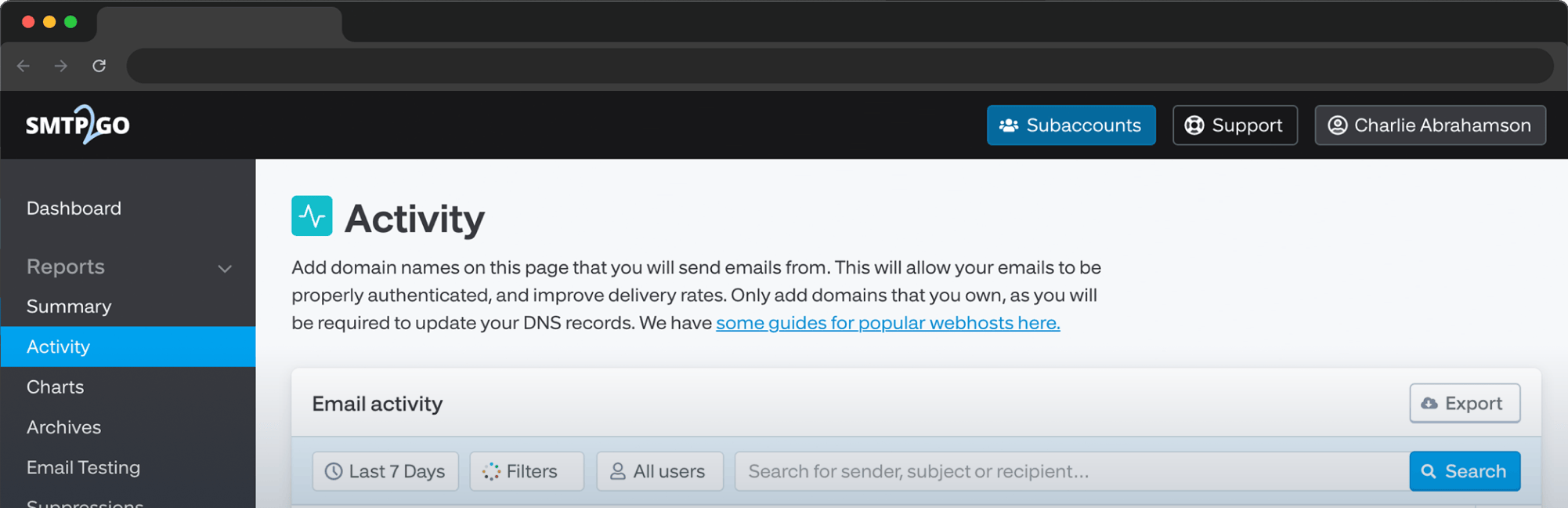
Log in to your SMTP2GO dashboard, go to Reports > Activity, and find the specific message. The Activity log is the source of truth for what happened to your email. Click the recipient’s address to open the timeline.
You’ll see one of these states:
- Processed means we received the message and queued it for delivery. If a message has been stuck on Processed for more than a couple of minutes, the delay is on our side or in the network between us and the recipient.
- Delivered means the recipient server accepted it. The Info column will show the response code from the receiving server, usually a 250 success message. From this point, anything happening to the message is on the recipient’s side.
- Soft Bounce means a temporary failure (mailbox full, server busy, content scored as spam). We retry these for up to 72 hours. If you’re seeing soft bounces, the delay is real but probably temporary.
- Hard Bounce, Rejected, or Spam mean the message didn’t arrive at all. That’s a different problem; our guide to email delivery errors explains what each one means.
Step 3: Read the timestamps
Inside the timeline, look at the time gap between Processed and Delivered. That gap tells you most of what you need to know.
- Under a minute: normal. If your recipient still says they haven’t seen it, the delay is on their side (filtering, sync, slow inbox refresh). Ask them to check spam, promotions, and any quarantine.
- A few minutes to an hour: likely greylisting or recipient-side throttling. Almost always self-resolves. Ask the recipient to wait, or check whether the same gap appears for other recipients on the same domain.
- Hours, repeatedly: something more serious is in play. Most often a reputation issue, a content trigger, or a misconfigured sending domain. See the symptom table below.
Step 4: Read the headers when you need to go deeper
Click the Headers tab on the same timeline view. The headers contain a stack of Received: lines, one for each hop the message made. They list timestamps. By comparing those timestamps, you can spot exactly where time was lost.
If most of the time was burned between SMTP2GO and the recipient’s server, that points to network or recipient-side queuing. If most of the time was burned after the recipient accepted the message (which you can sometimes see in subsequent hops within the recipient’s internal infrastructure), that’s recipient-side spam scoring or internal routing, and it’s not something you can fix from your side.
If headers feel like a foreign language, our team can walk through them with you. That’s literally why support exists.
The symptom-cause-action table
This is the section most readers will jump to. Match what you’re seeing on the left, read the likely causes in the middle, take the action on the right.
| What you’re seeing | Most likely cause | What to do next |
|---|---|---|
| First send to a new recipient is delayed by 10–60 minutes, then later sends are fast | Greylisting | Nothing. It’s working as designed. Send a test follow-up to confirm subsequent messages are fast. |
| Recipient server returns “Processed” but message hasn’t reached “Delivered” | Recipient server is slow, busy, or temporarily unavailable | Wait. SMTP2GO retries automatically for up to 72 hours. Check the status page for major recipient outages (Gmail, Microsoft 365). |
| Soft bounce with a 4XX code, especially 421 or 451 | Recipient is rate-limiting you or temporarily deferring | Slow your send rate. Check your reputation. SMTP2GO will retry automatically. If it persists, see the reputation guide. |
| Delays specifically to Gmail or Microsoft, not other providers | Provider-specific throttling, reputation drop, or content filtering | Check Google Postmaster Tools or Microsoft SNDS for your sending IP. Review your authentication. See Gmail and Yahoo’s 2024 inbox protection rules. |
| Delivered status appears, but the recipient still doesn’t see the email | Inbox placement issue, not a delivery delay | Have the recipient check spam, promotions, and quarantine folders. If it’s there, your problem is filtering, not delay. See how to stay out of the spam folder. |
| Delays grow longer over consecutive sends | Reputation degradation in real time | Stop the campaign, check your bounce and complaint rates, fix the underlying cause before resuming. |
| Large emails (heavy attachments, big HTML payloads) consistently slower | Message size and content scanning | Compress images, link to attachments instead of embedding, simplify HTML. See email formatting and inbox delivery. |
| Delays appearing across all sends regardless of recipient | Issue on your sending side: auth failure, IP issue, or our infrastructure | Confirm your SPF, DKIM, and DMARC records are valid. Check the SMTP2GO status page. Open a support ticket if both look fine. |
Why emails get delayed: the real list
If you want the longer explanation behind that table, here are the causes that actually drive most delays, grouped by where they happen.
Sender-side causes (your end)
Authentication problems. If your SPF, DKIM, or DMARC records are missing, misaligned, or recently changed, recipient servers will apply extra scrutiny before accepting your mail. That extra scrutiny is delay. If you’re new to authentication, our DKIM deep-dive and DMARC explainer cover what to set up and why.
Sender reputation. Every IP and domain you send from has a reputation score with each major mailbox provider. Lower reputation means slower acceptance, more 4xx deferrals, and more time in the recipient’s “should we even let this in?” queue. Reputation builds slowly and breaks fast. Sending to bad addresses, getting spam complaints, or sudden volume spikes all hurt it.
Content and size. Large attachments and complex HTML take longer to scan. Some servers cap attachment sizes at 10 MB or 25 MB. Spam filters score content; messages that look risky get held for additional analysis. If you embed videos, host them externally and link instead.
Sending too fast. SMTP2GO can move mail very quickly, but the bottleneck is almost never us, it’s the recipient. If you’re hammering Gmail with 50,000 messages in five minutes, Gmail will throttle you. The right answer is to spread the send. Our guide on slow sending speeds and how to speed them up covers concurrent connections and how to tune them.
Receiver-side causes (the other end)
Greylisting. The recipient server temporarily refuses the first email from an unfamiliar sender, asking the sending server to try again. Legitimate senders (us) retry automatically. Spammers usually don’t. The first delivery to a new recipient can take anywhere from a few minutes to an hour because of this; subsequent sends are fast.
Throttling and rate limiting. Gmail, Microsoft, Yahoo, and most major providers limit how many messages they’ll accept from a given sender in a given time window. Hit the limit and the rest queue. This is normal at scale.
Post-acceptance scrutiny queues. Even after a recipient server accepts your message with a 2XX code, it may hold the message for additional scanning before placing it in the inbox. Gmail in particular does this for content patterns or sending behaviors that deviate from your norm. From your dashboard the message looks “Delivered.” From the recipient’s view, it hasn’t shown up yet.
Recipient infrastructure issues. Mail servers go down, get overloaded, or run maintenance. When they do, your message sits in the SMTP2GO retry queue until the recipient is healthy enough to accept it.
4xx soft deferrals. Status codes in the 4XX range are temporary failures. The recipient is saying “not now, try later.” SMTP2GO’s retry logic handles these automatically for up to 72 hours, with backoff intervals between attempts.
Network and pipeline causes
Internet routing issues. Rare but real. A network hop between you, us, and the recipient can be slow or congested.
DNS issues. If recipient DNS records are slow to resolve or temporarily failing, that’s delay before the message can even be handed off.
What to do next, based on what you found
Quick decision tree for after you’ve run the diagnostic.
If the status page shows an incident: wait it out. There’s nothing to fix on your end.
If the timeline shows greylisting (first send slow, follow-ups fast): nothing to do. The system is working.
If you’re seeing 4xx soft deferrals: SMTP2GO is already retrying. Don’t resend manually; it can compound the problem. Check your reputation if deferrals are frequent.
If you’re seeing delays only to specific providers (Gmail, Microsoft): investigate provider-specific reputation. Check Google Postmaster Tools and Microsoft SNDS. Review your authentication for that sending domain.
If reputation looks bad: stop sending to that list, clean it for invalid and unengaged addresses, then resume slowly. Our guide on improving sending reputation walks through it.
If content or message size keeps appearing as the cause: simplify. Smaller payloads, externally hosted images, fewer links, cleaner HTML.
If the message shows Delivered but the recipient doesn’t see it: that’s not a delay, that’s a filtering issue. Different fix entirely. Start with our broader delivery troubleshooting guide.
If everything looks fine on your end and ours: reach out to support. We have visibility into things that your dashboard doesn’t always surface, and we’d rather help you catch a problem early than let it sit.
How SMTP2GO helps you diagnose delays faster
The diagnostic above is built around features you already have access to. Quick tour:
Activity log and timeline. Every email you send shows up at Reports > Activity with its full delivery timeline, response codes, and timestamps. This is your first stop for any delay investigation. Paid plans retain 30 days of activity by default, with the option to extend up to 2 years; free plans retain 5 days. Full details in the Activity Report support article.
Headers visibility. Click any recipient address in the timeline and switch to the Headers tab. You’ll see the full received-header chain, which is what lets you spot where time was actually spent.
Suppressions. Hard bounces, spam complaints, and unsubscribes get automatically added to a suppression list to protect your reputation. Manage them at Reports > Suppressions so they don’t pile up silently and drag your delivery down.
Email Testing. On Professional plans and above, Email Testing simulates delivery to multiple inbox providers and flags spam-filter triggers, formatting issues, and authentication problems before you send to your real list.
Status page. status.smtp2go.com is your “is it me or is it them” check before you go deeper.
If the diagnostic points to something you can’t resolve from the dashboard, our support team is staffed across multiple time zones and routinely helps senders trace delays through headers, identify reputation issues, and tune sending behavior.
Yes. Greylisting alone routinely produces multi-hour first-send delays from completely healthy sending infrastructure. Recipient-side throttling on large providers can stretch high-volume campaign delivery across hours. The duration of a delay isn’t enough to tell you something is wrong; you need to look at where the delay is sitting and whether it’s repeating. A delayed email is on its way but hasn’t arrived as fast as expected. A deferred email got a temporary 4XX response from the recipient and is being retried. A bounced email failed: soft bounces are temporary failures that SMTP2GO retries; hard bounces are permanent and get added to your suppression list. We cover the full taxonomy in our hard and soft bounces guide. No. “Delivered” means the recipient server accepted the message. What that server does next (inbox, spam folder, promotions tab, additional scanning queue) is outside your visibility and ours. If your dashboard shows Delivered but the recipient says they don’t see it, the issue is filtering, not delay. Check Google Postmaster Tools and Microsoft SNDS for the IPs you send from. If you’re seeing reputation drops, increased complaint rates, or 4xx deferrals concentrated at one provider while others accept fine, that’s a strong signal. Our coverage of Gmail and Yahoo’s 2024 inbox protection rules explains what those providers expect from senders. When the diagnostic points to something on our infrastructure (which the status page should confirm), when you’ve confirmed your authentication and reputation are healthy but delays persist, when you’re seeing patterns in headers or response codes that you can’t interpret, or when you just want a second pair of eyes. We’d rather help you early than have a small issue become a campaign-wide problem.Frequently asked questions
Final takeaway
Most email delays aren’t a sign that something is broken. They’re the protocol doing what it’s supposed to do under conditions like greylisting, throttling, retries, and recipient-side scrutiny. The skill isn’t avoiding delays entirely (you can’t), it’s knowing how to tell a normal one from a real one.
If your delays look normal: you’re done. If they look real: you now have the tools to find the cause in five minutes flat.
Open your Activity log, find the message in question, and run the diagnostic. If you’d rather we look with you, our support team is one ticket away.
For the broader picture, including delivery failures, spam-folder placement, and authentication setup, our complete email delivery troubleshooting guide is the natural next read.
Need to send transactional or campaign email reliably, with full visibility into every delivery event? Try SMTP2GO free. 1,000 emails/month, no credit card, paid plans available when you outgrow it.

No thoughts shared yet. Be the first to leave a comment above!