

Introducing Scheduled Reporting: a new feature that lets you customize your email reports.
You can select the data you want to see from your Activity, Summary and Suppressions pages, and choose how often you want to receive the reports (daily, weekly or monthly). The reports will be sent to your email address or any other recipients you specify.
Scheduled Reporting is available on all paid plans and gives you more control over the data you need and want to see.
To get started…
Navigate to the Reports > Data Exports section of the dashboard and go to the Scheduled Reports tab.
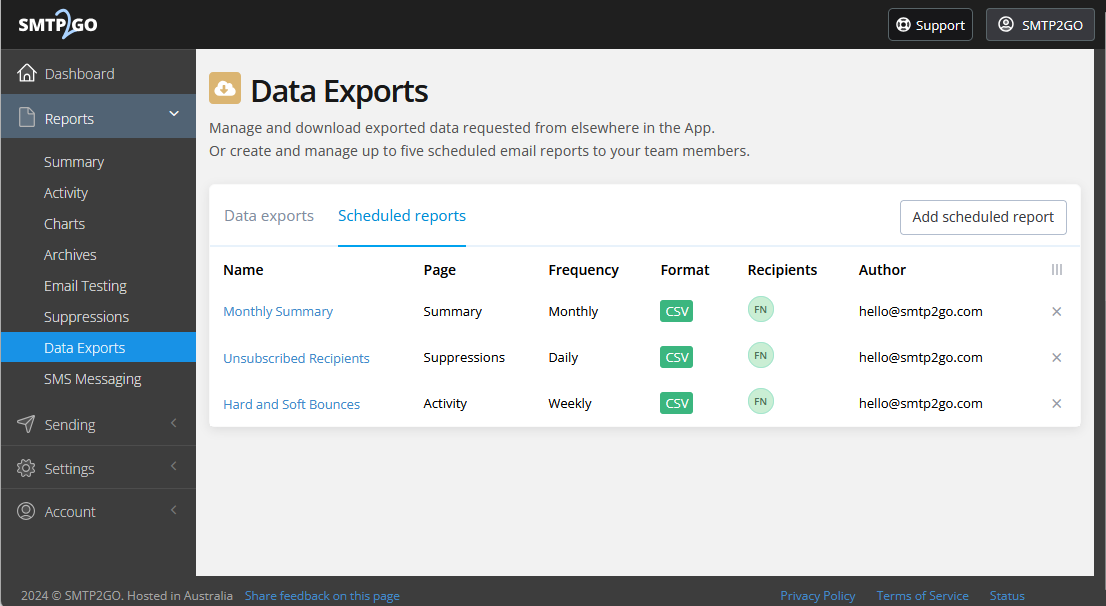
To add a new report, click the Add scheduled report button on the right side of the page, set the report requirements and then click Save.
To edit an existing report, click on the specific report’s name and the settings will be displayed.
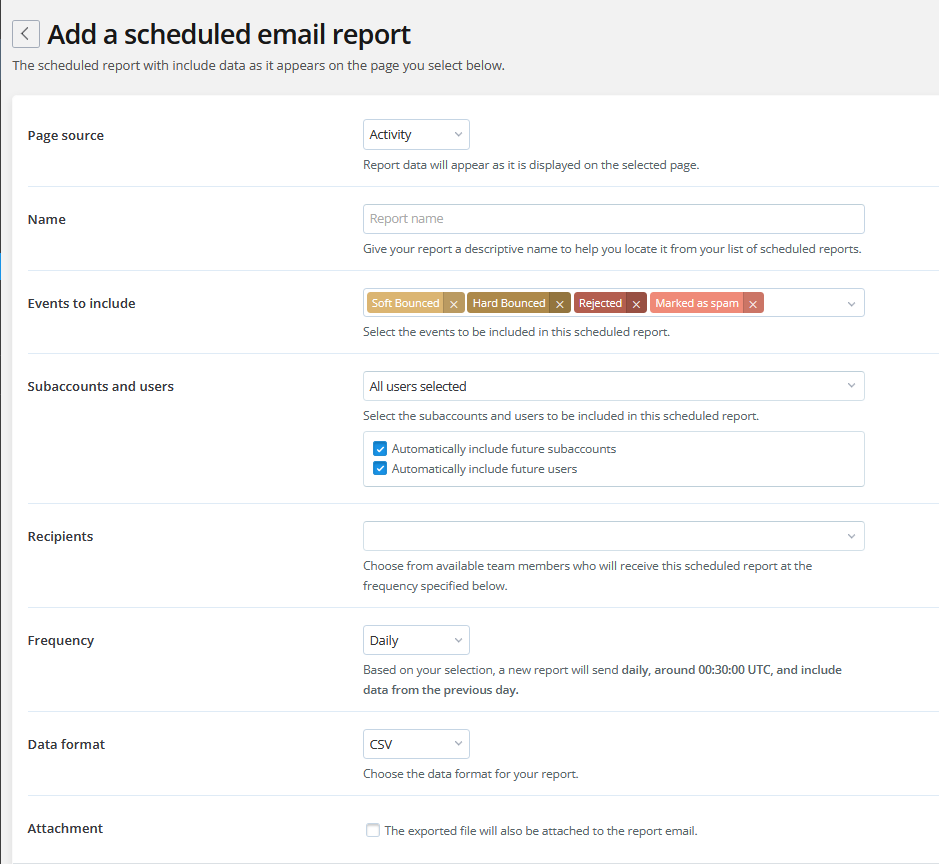
Page Source: Choose the page the data for the report will be from (Activity, Summary or Suppressions).
Name: Set a friendly display name for the report.
Events to include: (shows when Activity or Suppressions is selected): Select the page events to be included in the report.
Recipients: Choose the recipient address(es) for the report. The address(es) will need to be existing team members and a maximum of 3 recipients can be selected.
Frequency: Choose to receive the report either Daily, Weekly or Monthly.
Data Format: Choose the report data format with the option of CSV, XML and NDJSON.
The maximum number of scheduled reports per account is 5.
The reports are generated around 00:30 UTC and sent daily, weekly on Monday, or monthly on the 1st of the month.
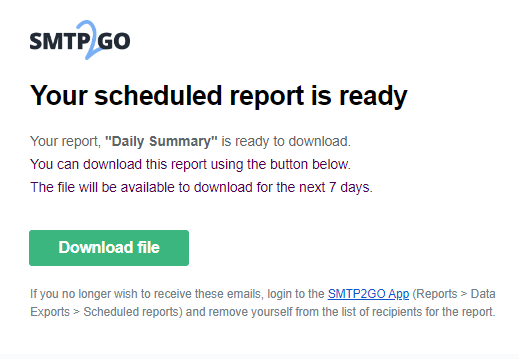
The email will be delivered from ticket@smtp2go.com with a button to download the report:
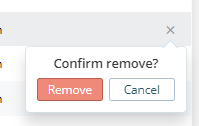
If you wish to delete a scheduled report, use the “X” button on the right side of the page.
If you have questions regarding Scheduled Reporting or other parts of our service, please reach out to our support team for assistance.



No thoughts shared yet. Be the first to leave a comment above!