

Spam complaints can feel like a right, old kick in the teeth! Having spent precious time crafting an email, only to find that the recipient has marked it as spam, can leave you feeling deflated. It’s not the end of the world, however, and here we run through how to fix a spammy situation.
Firstly, what are spam complaints?
Spam complaints occur when a recipient marks an email as spam or moves an email to their spam/junk folder after successful delivery. In some cases, recipients may do this by accident and will be unaware of the consequences (horror!) that result from it. A spam complaint is not caused by an email going directly to a recipient’s spam/junk folder due to recipient email filtering, it must be manually triggered by the recipient.
SMTP2GO has a very low tolerance for spam complaint levels. If your spam complaint level is too high, you risk account suspension and it can also harm your sender reputation which can affect your deliverability overall.
What happens when a spam complaint occurs?
If a recipient marks an email as spam or moves it to the spam/junk folder, SMTP2GO is notified and a block will be placed on the recipient’s email address in your account that will show on the Reports > Suppressions page.
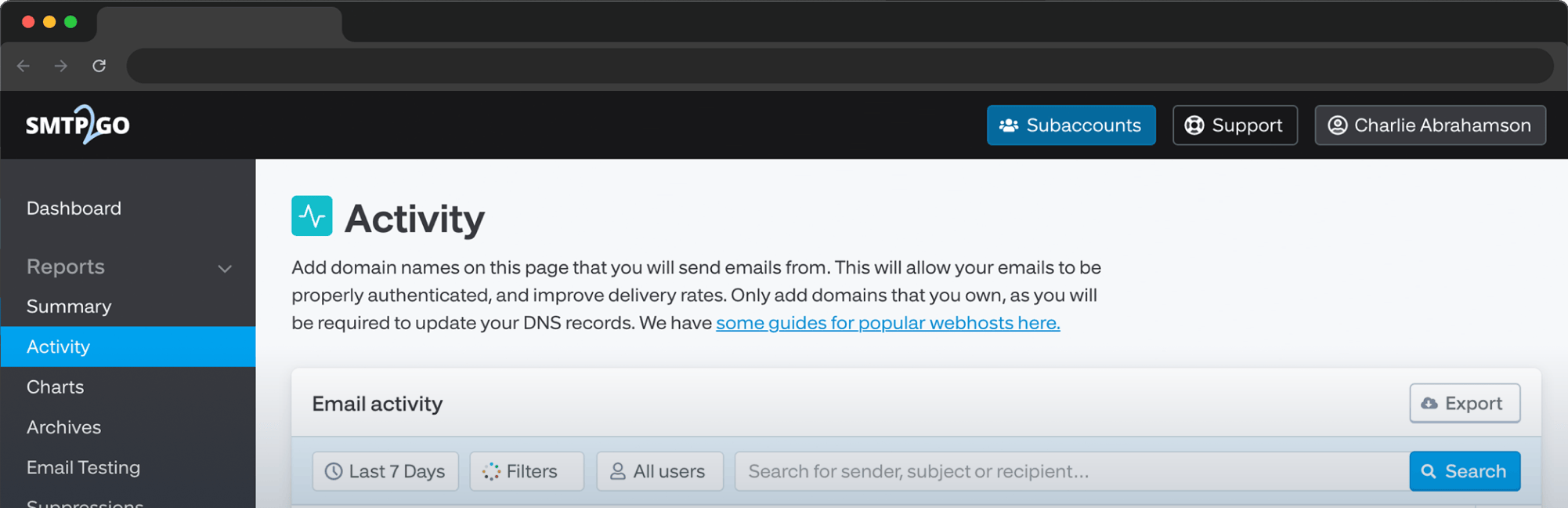
The spam complaint event will show on your Reports > Activity page (visible for 5 days for free plan accounts and 30 days for paid accounts) and whilst blocked, any further attempts to send to the recipient will be rejected and these attempts will also show as ‘Rejected’ events.
How can I fix spam complaints?
We recommend you remove the email address from your mailing list to avoid further sending attempts as they will count towards your monthly email quota. To resolve a spam complaint that you believe was not legitimate, you could reach out to the recipient by another means. If was by accident and they do wish to continue receiving your emails, you can remove their address from the Reports > Suppressions page.
Note: If you cannot find the address on your Suppressions page, please ensure you set the date/time filter to All Time when searching for the specific address. The recipient will also need to move the email from their spam/junk folder and back into their inbox to avoid future emails automatically being placed there.
We do not recommend removing the recipient address from the Suppressions page due to a spam complaint without their permission. If you do unblock the email address and send to them again, this could result in another spam complaint that will draw the attention of our review team. It’s also poor emailing etiquette to keep on sending to a recipient who clearly does not wish to receive your emails.
If you encounter any spam complaints that you would like assistance with, please contact our award-winning support team with specific examples and we will investigate for you.



No thoughts shared yet. Be the first to leave a comment above!