

You spoke and we listened! Email templates for API users are finally here. This easy-to-use feature will not only save you time and headaches but will also keep your templates nice and organized for continuous use.
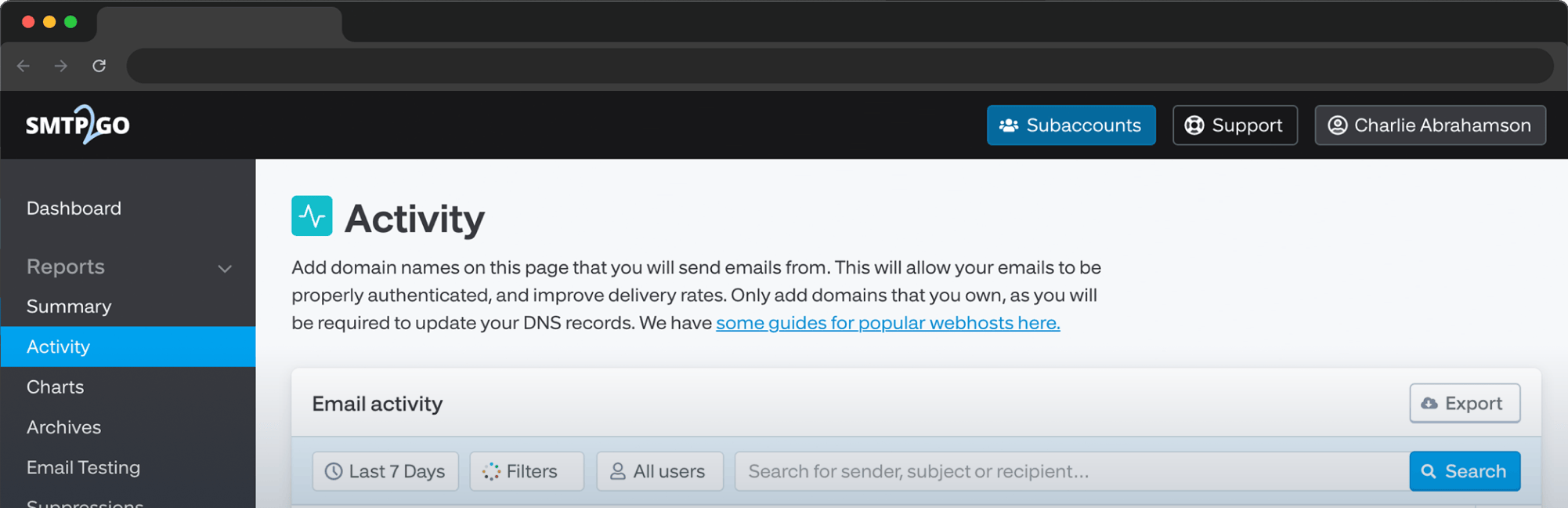
API users can now easily manage their email templates by creating, editing, testing, and previewing them directly from the “Settings > Templates” section of the user dashboard. Click on the “Get Started with Email Templates” button and select the desired email template to enter editing mode.
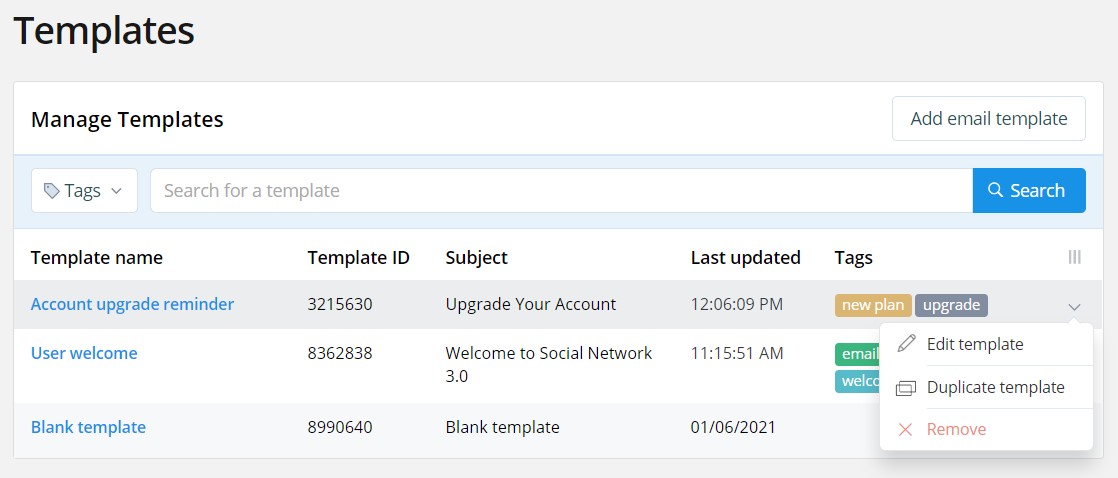
If you’ve already created a template, you’ll see a list of your templates with options to “Add Email Template”, or edit your existing templates by clicking the drop-down menu on the right-hand side of the template list.
From here, you can set a “Name” for your template, the “Subject” as it will appear in the customer’s inbox, and any custom tags used to describe or categorize your template.
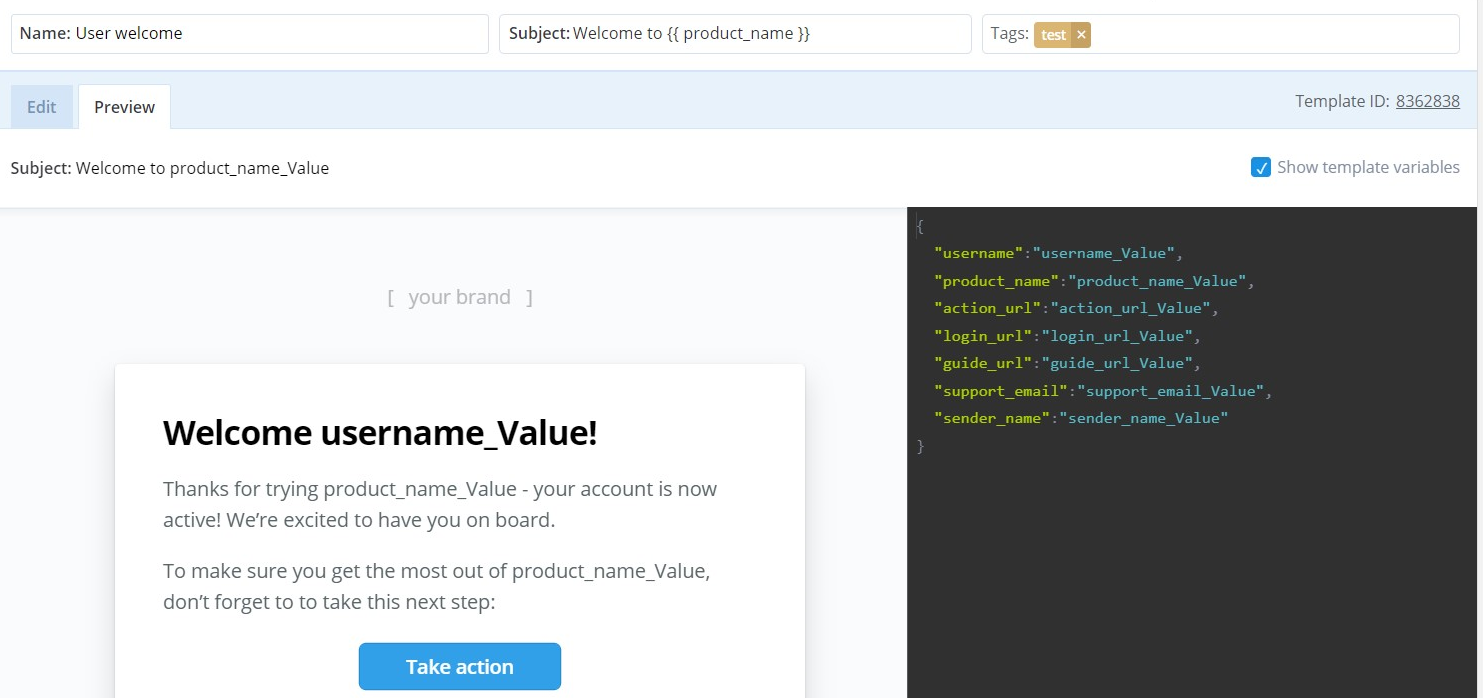
The “Preview” tab will show the email template as your recipient will see it. The “Edit” tab allows you to directly edit the HTML.
On the right-hand side, there is a “Show Template Variables” option. This allows you to set and use variables - think of them as “mail merge fields”. When you make your API call, you can set these variables to whatever you need to customize the email for each recipient.
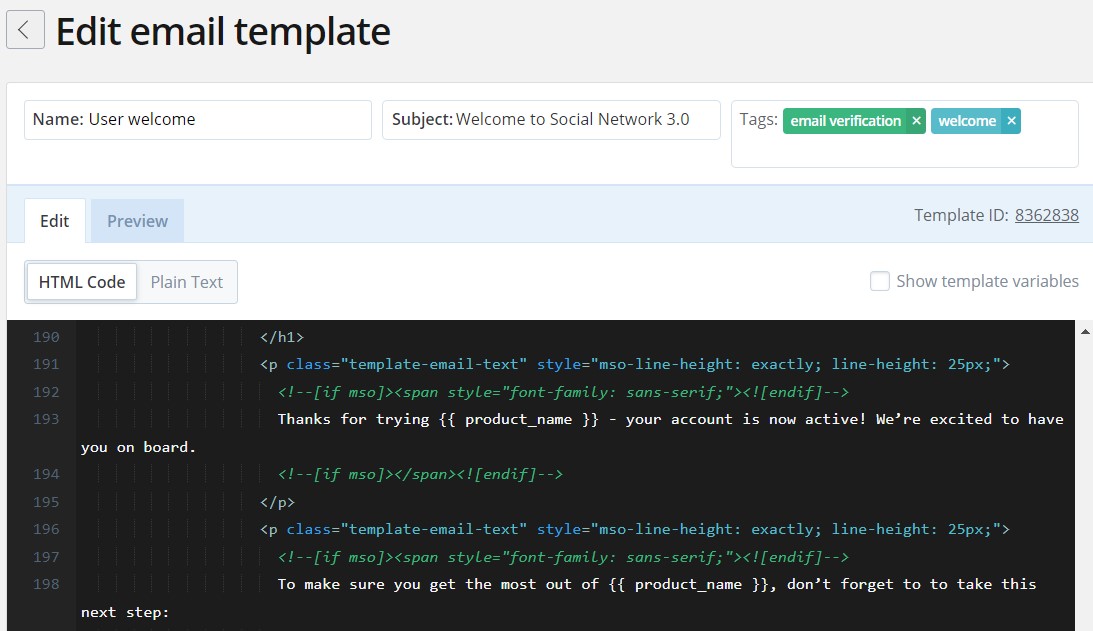
When editing the HTML, you will encapsulate the variable inside two braces, like this:
{{ variable_name }}
{{ mail_merge_field }} Our templating feature also supports HandleBarsJS so you can add lists to your templates, e.g. invoice line items. For more information, visit the HandleBarsJS Guide.
You can also preview the Plain Text version. Note: the Plain Text version is auto-generated from the HTML Code tab.
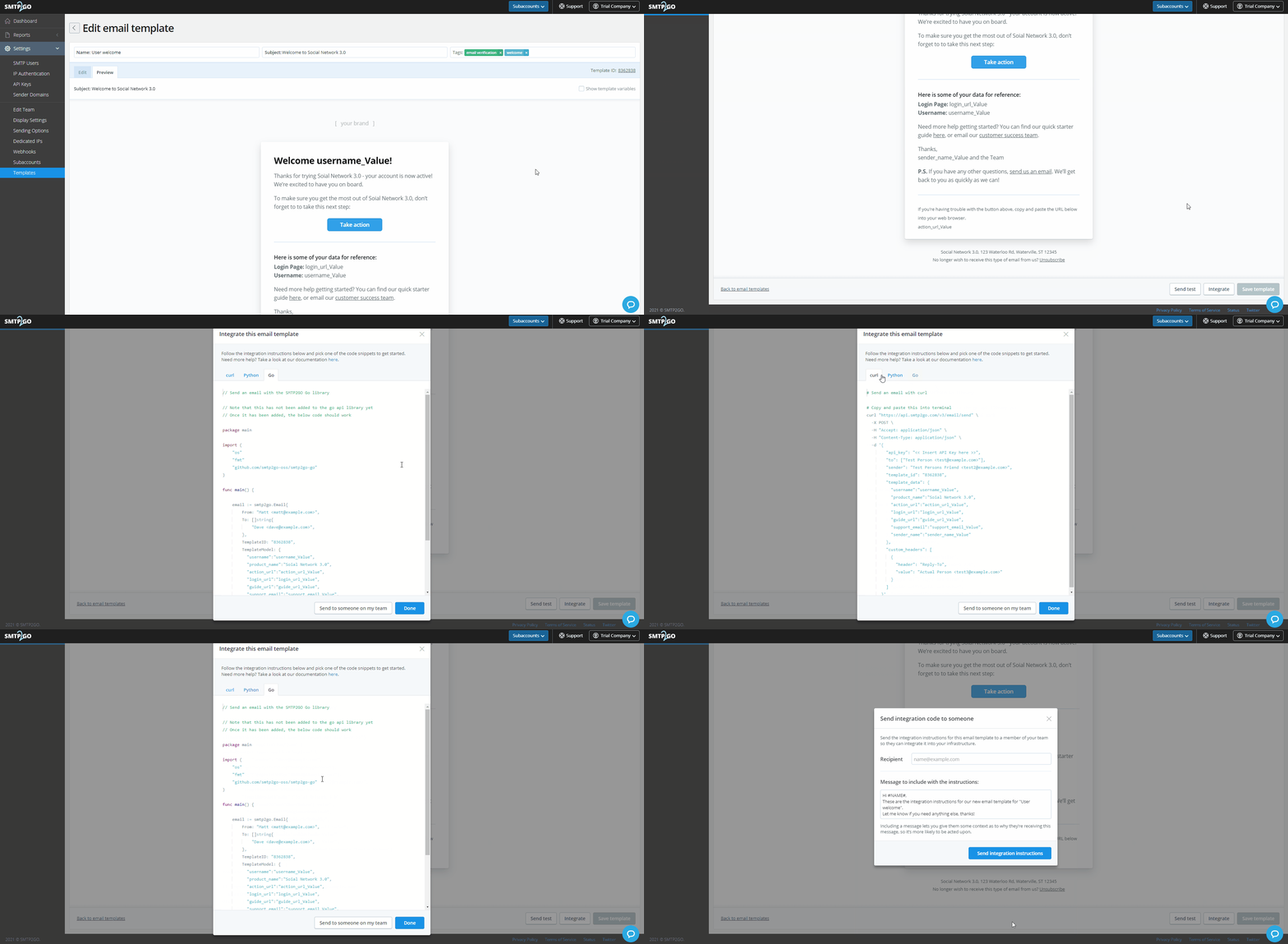
Once you have finished editing, click the “Save Template” button towards the bottom of the screen to add it to the template list. Users will then have the option to click the “Integrate” button in order to generate the code snippet in various languages.
And that’s pretty much it! This is a new feature and we’re actively improving it based on your feedback. Contact our Support team at ticket@smtp2go.com with your ideas (or if you spot any glitches!).
Happy emailing! 👋


No thoughts shared yet. Be the first to leave a comment above!