The fast, reliable way to get your Kyocera multifunction printer sending scanned documents by email, even when Office 365, Gmail, or your ISP make authentication painful.
If your Kyocera scan-to-email keeps failing, or your IT team is staring down Microsoft’s Basic Auth retirement and the printer simply can’t do OAuth, this guide gets you sending in about ten minutes. SMTP2GO is an authenticated SMTP relay, which means your printer talks to us, and we handle the rest. No app passwords, no MX record edits, no waiting on a mail provider’s modern auth flow that your copier doesn’t support.
This guide covers Kyocera ECOSYS and TASKalfa devices using Command Center RX (the modern web admin interface). If you’re on an older Command Center build, the menu names differ slightly but the values are the same.
Quick answer: Kyocera SMTP settings for SMTP2GO
If you already know your way around Command Center RX, here’s everything you need.
| Kyocera field | Value |
|---|---|
| SMTP Protocol | On |
| SMTP Server Name | mail.smtp2go.com |
| SMTP Port Number | 2525 (recommended). Fallbacks: 587, 8025, 25 |
| SMTP Server Timeout | 90 seconds |
| Authentication Protocol | On |
| Authenticate as | Other |
| Login User Name | Your SMTP2GO SMTP username |
| Login Password | Your SMTP2GO SMTP password |
| SMTP Security | STARTTLS |
| E-mail Size Limit | 0 (no limit) |
| Sender Address | The “from” address you want to send as (must match a verified sender on your SMTP2GO account) |
If your network blocks all of the standard ports, SMTP2GO also accepts SSL/TLS on 465, 8465, and 443. And if your printer can’t accept a hostname, you can connect by static IP to 43.228.184.6 or 103.47.204.4.
You can grab your SMTP2GO username and password from the SMTP Users section of your SMTP2GO dashboard. If you don’t have an account yet, the free plan covers 1,000 emails per month, which is well above what most offices push through a copier.
Before you start
You’ll move faster if you have these ready.
- Your Kyocera printer’s IP address. Step 1 below covers two ways to find it.
- Admin login for Command Center RX. On most modern Kyocera devices, the default is
Adminfor both username and password (capital A). On ECOSYS series machines, the default is the last two digits of the model number followed by00. So an ECOSYS M5521cdn uses2100for both fields. - An SMTP2GO account with an SMTP user created. If you haven’t done this yet, start a free SMTP2GO account and grab the SMTP username and password it generates. This is not your SMTP2GO login email and password.
- A verified sender address on your SMTP2GO account. This is the email address the printer will send from. SMTP2GO will not deliver mail with a sender it can’t authenticate.
- Network access to the SMTP port you choose. If your firewall blocks 25 outbound (most do), 2525 is the safe default.
Step 1
Log into admin area of “Kyocera COMMAND CENTER” using your admin password.
Navigate to “Advanced > E-mail > SMTP > General”.
Step 2
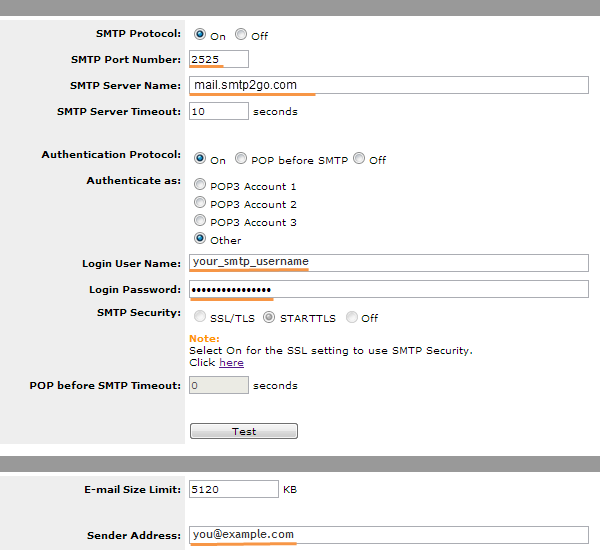
Set SMTP Protocol to On.
Set the SMTP Port Number to 2525. You can also try using Server Port 25, 8025 or 587.
Change the SMTP Server Name setting to mail.smtp2go.com.
Set Authentication Protocol to On and Authentication as to Other.
Enter your SMTP2GO SMTP user name into Login User Name and your SMTP password into Login Password.
Please note that the Username may need to be the same as the Sender Address.
Set SMTP Security to STARTTLS.
Enter the email address you wish to send your printer’s emails from into the “Sender Address” box.
You may click Test button to make sure the e-mail feature works. In the Test Email dialog box, enter the recipient’s e-mail address, and click OK.
Click Submit to save the e-mail settings.
Troubleshooting Kyocera scan-to-email errors
Kyocera devices report scan-to-email failures as four-digit codes (sometimes shown as 0x followed by the digits). Here’s what each one means and what to fix.
| Error | What it means | What to do |
|---|---|---|
| 1101 / 0x1101 | SMTP Server Name is blank or wrong | Confirm mail.smtp2go.com is entered exactly. No leading or trailing spaces. |
| 1102 / 0x1102 | Login username or password is wrong | Re-enter your SMTP2GO SMTP username and password. These are the credentials from the SMTP Users section of the dashboard, not your account login. |
| 1104 / 0x1104 | SMTP server denied access | Confirm your SMTP user is active and your account is in good standing. |
| 1105 / 0x1105 | SMTP is not enabled | Go to Network Settings > Protocol, turn SMTP (E-mail TX) On, click Submit. |
| 1106 / 0x1106 | No sender address | Add a verified sender address in the E-mail page. |
| 2101 / 0x2101 | Server name resolution failed | Same as 1101. Check the host. Also check the printer can reach DNS. |
| 2102 / 0x2102 | Connection timeout | Increase SMTP Server Timeout to 90. If still timing out, the chosen port is probably blocked. Try 2525, then 587, then 8025. |
| 2103 / 0x2103 | Server can’t establish a connection | Network or firewall issue. Confirm the printer can reach mail.smtp2go.com on the chosen port. |
| 2204 / 0x2204 | File size limit exceeded | Set E-mail Size Limit to 0. |
| 3101 / 0x3101 | Server rejected email | Usually a sender address mismatch. Confirm the Sender Address is verified in SMTP2GO. |
| 3102 / 0x3102 | No SMTP authentication found | Set Authentication Protocol to On and Authenticate as to Other. |
| 3201 / 0x3201 | Authentication or sender mismatch | Re-type the password manually (don’t paste). If that works, you had a stray character in the password field. |
| 4803 / 0x4803 | Failed to establish SSL session | Wrong SMTP Security for the port. Match the port to the table above. If you’re on STARTTLS and still failing, your firewall may be inspecting TLS and downgrading it. |
If you get a code that isn’t on this list, check SMTP2GO’s common fixes for scan to email or contact our support team. Real humans, fast replies.
When SMTP2GO is the right choice for Kyocera scan-to-email
The honest answer: SMTP2GO is the simplest path when your printer can’t do modern authentication, when your mail provider is making it harder to use SMTP, or when you want scan-to-email to keep working without IT intervention every time a credential or policy changes.
vs. Microsoft 365 SMTP AUTH (smtp.office365.com). Microsoft is retiring Basic Authentication for SMTP AUTH. By the end of December 2026 it’s disabled by default for existing tenants, and the final removal is expected in the second half of 2027. Most Kyocera printers can’t speak OAuth, so when Basic Auth goes, scan-to-email through Office 365 stops. Sending through SMTP2GO (read the full timeline and impact) bypasses the change entirely, because your printer never touches Microsoft’s SMTP servers.
vs. Gmail SMTP (smtp.gmail.com). Gmail requires app passwords for any device that can’t do OAuth, and Google has been steadily retiring “less secure app” access. App passwords work, but they’re tied to a personal account, they break when the user changes their password, and they’re not appropriate for a shared office device. SMTP2GO uses dedicated relay credentials that don’t collide with anyone’s mailbox.
vs. Microsoft Direct Send. Direct Send routes printer email through your domain’s MX record without authentication. It works, but only for recipients within your own domain, requires SPF record edits, and gets quarantined frequently because anonymous SMTP looks like spam to filters. SMTP2GO is authenticated and can send to any recipient.
vs. ISP SMTP. ISP relays vary wildly in reliability, deliverability, and feature support. They also tie your scan-to-email to your internet provider, which is a strange dependency for business document workflow.
The structural reason this works: SMTP2GO is an authenticated SMTP relay. Your Kyocera authenticates to us with simple username and password (which it can do natively), and we handle authenticated submission to the rest of the email world on your behalf, with proper SPF, DKIM, deliverability monitoring, and bounce handling. The printer never has to grow a feature it doesn’t have.
FAQs
What SMTP server should I use for SMTP2GO on a Kyocera printer?
mail.smtp2go.com. If your firmware needs an IP, use 43.228.184.6 or 103.47.204.4.
Which port should I use?
Start with 2525 on STARTTLS. If your network blocks it, try 587, then 8025. Use 465 with SSL/TLS as a fallback if STARTTLS isn’t working on your firmware.
Should SMTP Security be STARTTLS or SSL/TLS?
STARTTLS for ports 25, 587, 2525, and 8025. SSL/TLS for ports 465, 8465, and 443. Match the port and the security setting or you’ll see error 4803.
Does the Sender Address have to match the SMTP username?
No, but the Sender Address has to be verified on your SMTP2GO account. Your SMTP username is just the relay credential. The Sender Address is the “from” the recipient sees, and SMTP2GO needs to know you’re allowed to send as it. SMTP2GO supports both single sender verification and full sender domain authentication.
Where do I find my SMTP2GO SMTP username and password?
Log in to your SMTP2GO dashboard, open Settings, then SMTP Users. The username and password there are what your Kyocera needs. They’re separate from your account login.
Why is my Kyocera scan-to-email test failing?
Run through the error code table above. The most common causes are wrong sender address (3101/3102), blocked port (2102/2103), TLS mismatch (4803), and a typo in the password (1102/3201).
Will this still work after Microsoft retires Basic Auth in December 2026?
Yes. Sending through SMTP2GO doesn’t depend on Microsoft’s SMTP authentication. Your printer authenticates to SMTP2GO, not to Office 365. The Microsoft change does not affect this setup. We’ve written more on the Basic Auth retirement timeline.
Does this work for ECOSYS and TASKalfa models?
Yes. The settings are identical. The only difference is the default admin login on ECOSYS series, which uses the last two digits of the model number followed by 00.
My emails are landing in spam. What do I check?
Two things. First, make sure your sender domain is verified in SMTP2GO with the auto-generated DNS records, which set up SPF and DKIM properly. Second, give the recipient’s filter a few sends to learn the new pattern. New sender, even legitimate, almost always gets cautious filtering for the first few messages.
Can I send to recipients outside my company?
Yes. SMTP2GO is fully authenticated SMTP relay, so it sends anywhere, unlike Direct Send which only delivers internally.
What if I’m on an older Command Center (not Command Center RX)?
The same values apply. The menu path is “Advanced > E-mail > SMTP > General” instead of “Function Settings > E-mail.” If you’re on a device that old, also check that its TLS support is current; some pre-2018 firmware doesn’t support TLS 1.2 and will fail with error 4803 on any modern relay.
Ready for scan-to-email that just works?
Try SMTP2GO free, for as long as you like.
Start a free account → Free plans cover up to 1,000 emails per month, which is more than most offices send through a copier. Paid plans start when you’re ready for more volume, dedicated IPs, and advanced reporting.
Reviewed by SMTP2GO Support. Last updated: May 2026. Tested on Kyocera Command Center RX with current firmware on ECOSYS and TASKalfa series. If you have a Kyocera-specific question that isn’t covered here, our award-winning support team is real humans, fast replies.