Step 1
Open Command Prompt by running cmd (Windows Command Processor) if you are using Windows based Operating System or Terminal if you are using Mac.
To install Telnet on your Windows Device (7, 8, 10): 1 - Open “Control Panel” 2 - Open Programs” 3 - Select the “Turn Windows features on or off” option 4 - Check the “Telnet Client” box 5 - Click “OK”
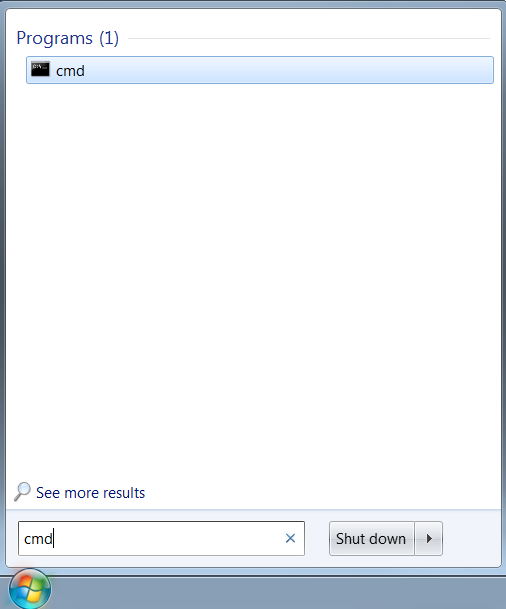
Step 2
Type telnet mail.smtp2go.com 2525 and Enter. You can also try using Port Number 25, 8025 or 587.
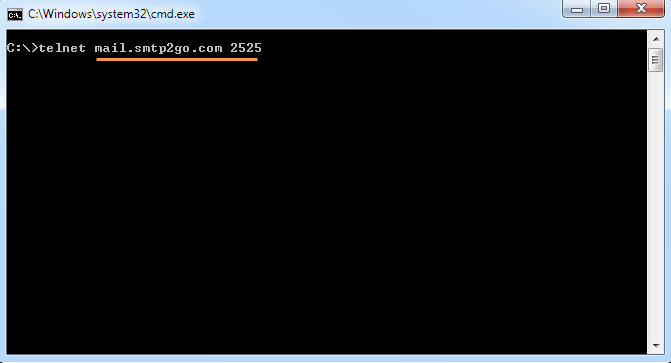
Step 3
You will get Response code 220. Once you receive this response, type EHLO and Enter.
220 mail.smtp2go.com ESMTP
	EHLO
	250-mail.smtp2go.com Hello
	250-SIZE 52428800
	250-PIPELINING
	250-AUTH CRAM-MD5 PLAIN LOGIN
	250-STARTTLS
	250 HELP
Step 4
Once you receive Response code 250 as above, type auth login and Enter.
You will be prompted for an Encrypted user name and password. You have to encode your SMTP2GO Username and Password using one of the tools at this link: Base64 Encoding.
An encoded username and password will appear as a long string of random characters.
auth login
	334 VXNlcm5hbWU6
	cm5zaAdrYW3kYXI=
// Enter your user name encrypted in base 64.

	334 UGFzd4dvcmQ1
// The server responds with an encrypted base 64 prompt for your password.

	QTExaXN3RWxs
// Enter your password encrypted in base 64.

	235 Authentication succeeded
Step 5
If you get 235 Authentication succeeded response then your connection to your account’s SMTP server is established and your SMTP2GO Username and Password are valid.
You may also try to send a test message as below:
mail from: <sender@example.com>
	250 OK
	rcpt to: <recipient@example.com>
	250 Accepted
	data
	354 Enter message, ending with "." on a line by itself
	To: Recipient Name
	From: Sender Name
	Subject: Test message
	This is a test message to verify SMTP2GO relay using telnet.
	.
	250 OK id=1TTTHD-0001Su-V0
	quit