Step 1
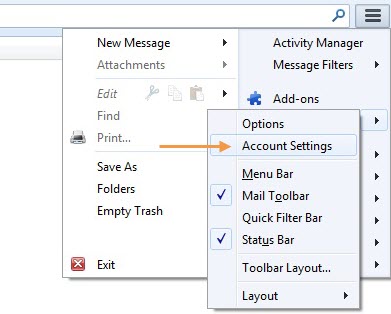
Select the ‘Accounts Settings’ from the Thunderbird Menu > Options.
Step 2
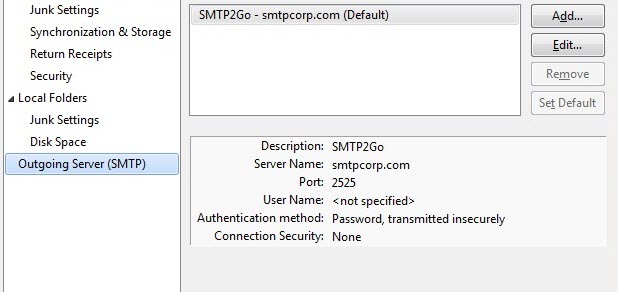
- Click on the Outgoing Server (SMTP).
- Select your current SMTP server and click ‘Edit…’. If you have no SMTP server set up yet, click ‘Add…’.
Step 3
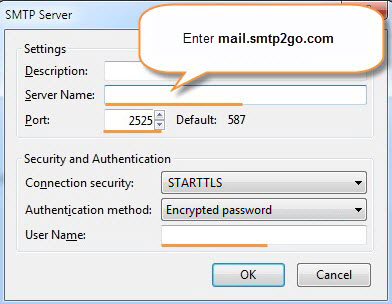
Change the Server Name setting to mail.smtp2go.com.
Change the Port setting to 2525. You can also try using Port 25, 8025 or 587.
Set Connection security to ‘STARTTLS’ and Authentication method to ‘Encrypted password’.
Enter your SMTP Username into User Name.
If you wish to use a non-secure connection, set Connection security to ‘None’ and Authentication method to either ‘Password, transmitted insecurely’ or ‘Encrypted password’.
The first time you try sending an email, you’ll be asked to enter your SMTP password.
Please note that Thunderbird operates with “Identities” and each of those can have its own SMTP configuration. You may also need to adjust these SMTP settings.
Ready for better email delivery?
Try SMTP2GO free for as long as you like:
Try SMTP2GO Free → Paid plans available for over 1,000 emails/month.