You hit Send. The message slid into the Outbox. Then it just sat there.
This is one of the oldest, most frustrating bugs in email. We’ve been fixing it for customers since 2006, and the honest truth is that most of the “10 ways to fix Outlook outbox” articles online treat the symptom and skip the diagnosis. A real outbox stall has maybe six common causes, and the fix depends on which one you’re looking at.
This guide gets you sending again in about a minute, then walks through the actual diagnosis if it keeps happening or if the messages are coming from a copier, a CRM, or a WordPress site instead of you typing in Outlook.
The 60-second fix (try this first)
Most of the time, one of four things has gone sideways. Run through these in order.
1. Make sure Outlook isn’t in Work Offline mode. Look at the bottom-right of the Outlook window. If it says Working Offline, hit Send/Receive > Work Offline to toggle it back. That alone clears a surprising share of stuck outboxes.
2. Open the stuck message and resend it. Double-click the message in the Outbox, change one character (a space at the end works), and click Send. This kicks the message out of the “being read” state that prevents Outlook from sending it.
3. Check the attachment size. If the message has a file over 20 MB attached, most mail servers will reject the whole send and Outlook will park it. Pull the attachment off, drop the file into OneDrive or Dropbox, paste a link instead, and send again.
4. Restart Outlook and your computer. Yes. It’s a cliché. It also clears a chunk of transient profile locks and Send/Receive errors.
Most readers stop here. If you’re one of them, great. Close the tab and get on with your day.
If you’re still stuck, or this keeps happening every few weeks, the next sections matter.
Why emails get stuck (the honest list)
We see seven causes more than any other. They’re ranked roughly by how often they show up in our support tickets, not alphabetically the way most articles dress them up.
1. Your network or ISP is blocking the SMTP port. This is the one nobody talks about, and it’s everywhere. Hotels, coffee shops, conference Wi-Fi, mobile hotspots, and several major residential ISPs in the US and Australia block outbound port 25. Some also block 587 or 465. Your laptop is happily connected to the internet. Outlook is fine. The packets are simply being silently dropped. Your message sits in the outbox because Outlook is waiting for an acknowledgment from a mail server it can’t reach.
2. The attachment is too big. Microsoft 365 caps outbound at 25 MB by default. Many corporate mail servers cap lower. Anything above triggers a soft block that often presents as a stuck outbox rather than a clean error.
3. Authentication drift. Your password changed. SSO expired. Microsoft retired basic auth on the protocol your app is using. The credentials Outlook has cached no longer work, and the server is rejecting the connection without telling Outlook clearly enough for it to surface a friendly error.
4. Work Offline got toggled. Sometimes a keyboard shortcut. Sometimes Outlook flips itself offline after a network blip. Either way, the messages queue and never leave.
5. A locked or “being read” message. If you opened the message in the Outbox to peek at it, Outlook flags it as in-use and won’t send it. Closing and reopening Outlook usually frees it.
6. The mail data file is genuinely corrupt. This is rare. It’s also where the third-party PST repair tools you’ve seen in other articles get their pitch. Don’t jump here first. It’s almost never the cause.
7. Server-side throttling or suppression. Your mailbox is full. Your sender reputation got dinged. The recipient server is rate-limiting your domain. Your outbox shows the message as queued because the server keeps deferring acceptance.
You’ll notice the pattern. Most of these aren’t bugs in your Outlook software. They’re network, account, or server problems showing up as a stuck outbox. The fix is almost never “repair the PST file.”
A 5-step diagnostic flow
If the 60-second fix didn’t unstick it, work through these five questions in order. Each step rules out a class of causes before moving on.
Step 1. Is it client-side or network-side?
Open a web browser on the same machine. Try to log in to your email provider’s webmail (Outlook on the web, Gmail, your hosted webmail, whatever applies) and send a test from there. If webmail sends fine, the problem is with your local client or its network connection to the mail server. If webmail also fails, the problem is either your account or your network’s ability to reach any mail service.
Step 2. Is the message itself the problem?
Move the stuck message to a folder (drag it into a normal folder). Compose a brand new short message with no attachments, addressed to yourself, and click Send. If the new message sends and the dragged one still won’t, something about that specific message (its attachment, its formatting, its recipient address) is the issue. Open the original, strip attachments, copy the body into a new mail, and try again.
Step 3. Is your account authenticated correctly?
Go to File > Account Settings > Account Settings > [your account] > Change. Click Test Account Settings. If the test fails, that’s your answer. Re-enter the password. For Microsoft 365 accounts on a modern Outlook build, Outlook will prompt for sign-in if your token has expired. If you’re using SMTP with a long-lived password from a hosting provider, double-check it hasn’t been rotated.
Step 4. Is your ISP or firewall blocking the port?
This is the one that catches people. Run this in PowerShell or Command Prompt on Windows:
Test-NetConnection mail.smtp2go.com -Port 587
Or on Mac/Linux:
nc -zv mail.smtp2go.com 587
Replace the hostname with your actual SMTP server. If the connection times out or fails, your network is blocking the port. Try the same test against ports 25, 465, and 2525. If 2525 works but 587 doesn’t, your ISP is the culprit. SMTP2GO and most reputable relays offer port 2525 specifically because so many providers block 25, 465, and even 587.
Step 5. Is the message actually leaving but failing later?
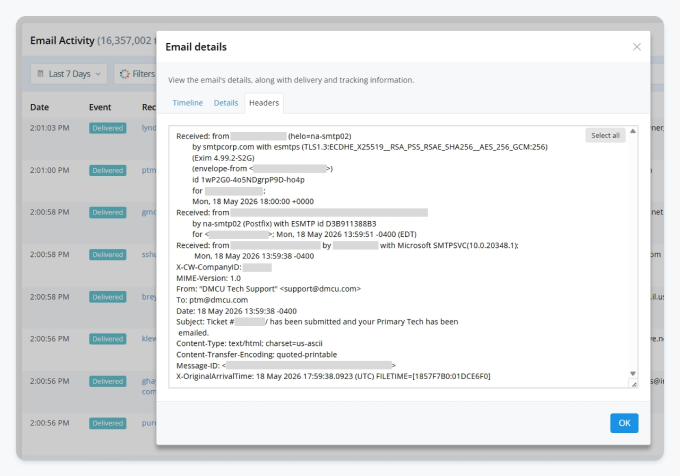
Sometimes the outbox empties (so it looks like a fix), but the message never arrives. The recipient swears they didn’t get it. The “stuck outbox” was actually a delivery failure that bounced silently. Check your Sent folder for the message. Then check your provider’s logs or your SMTP relay’s activity dashboard. If you’re an SMTP2GO customer, head to Reports > Activity and look up the recipient. You’ll see whether it was delivered, bounced, rejected, or held in a slow-send queue. More on that in How to confirm an email actually sent, below.
If you’ve worked through all five steps and the answer is “the port is blocked” or “the message left my outbox but never arrived,” you’re past the point where any “restart Outlook” guide helps. That’s a mail relay or deliverability problem, not a client problem.
Fixing it in Outlook for Windows
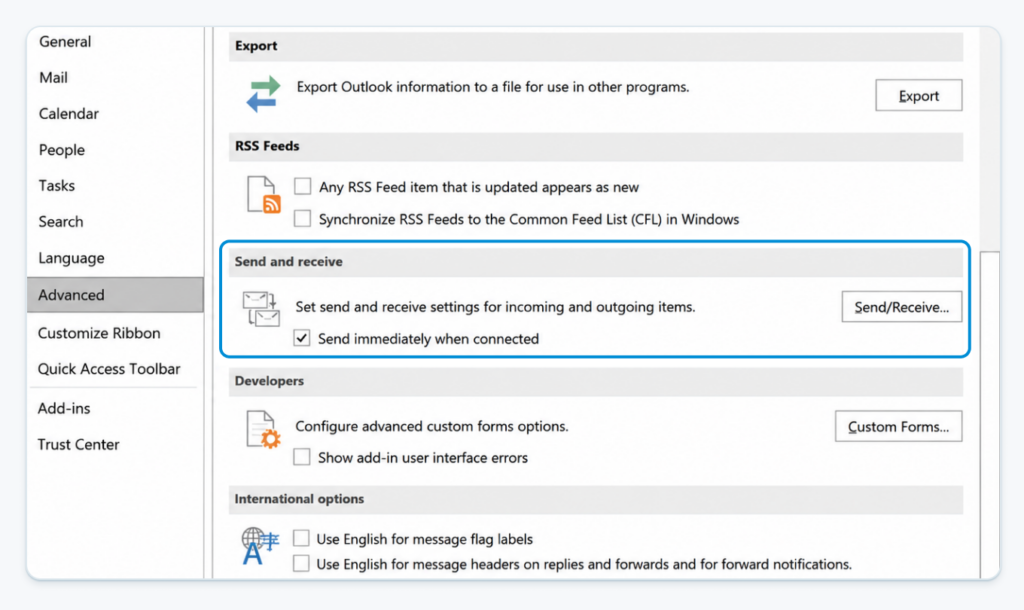
The classic Windows Outlook (Outlook 2016, 2019, 2021, and the perpetual Microsoft 365 build) has one setting buried deep enough that most stuck-outbox articles never mention it. It’s the one that fixes the persistent case where messages sit in the outbox until you manually press F9.
Go to File > Options > Advanced. Scroll to the Send and Receive section. Tick Send immediately when connected. Click OK.
That’s the setting that controls whether Outlook ships messages the moment your network is alive or waits for a scheduled Send/Receive cycle. If it’s off and you’re on a flaky network, messages pile up. Honestly, we’ve seen this account for the majority of “all my emails are stuck again” tickets in legacy Outlook installs.
Other Windows-specific moves:
- Send/Receive Groups:
Send/Receive > Send/Receive Groups > Define Send/Receive Groups. Check that Include this group in send/receive (F9) is ticked for your active account. - Repair your profile (only after the above):
Control Panel > Mail (Microsoft Outlook) > Show Profiles > select your profile > Properties > Email Accounts > Repair. - Rebuild your profile (last resort): Same dialog, Add a new profile, configure your account, set the new profile as default in Always use this profile. This rebuilds your OST from scratch on next launch.
Don’t run third-party PST repair tools unless you’ve confirmed file corruption, which usually shows up as Outlook refusing to open, not as a stuck outbox.
Fixing it in Outlook for Mac
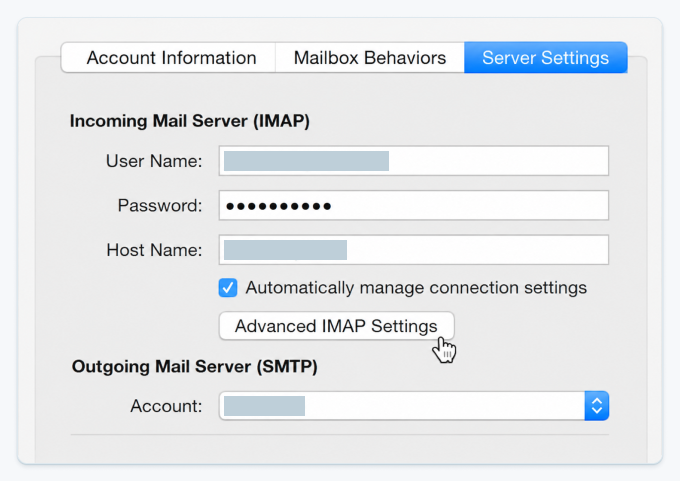
Outlook for Mac handles things differently enough that Windows fixes don’t always translate. The most common Mac-specific cause is the IMAP path prefix being wrong, which traps sent messages in a local outbox the server never sees.
Open Outlook > Settings > Accounts > [your account] > Advanced. Check the Server settings and the IMAP path prefix (often it should be empty or INBOX). Force a Send/Receive from Tools > Send/Receive > Send All. If a message is locked open, force quit Outlook with Cmd + Option + Esc, reopen, and let it run a Send/Receive automatically. If none of that works, rebuild the database by holding Option while launching Outlook to access the Microsoft Database Utility. This is rare but occasionally necessary.
Fixing it in the new Outlook and Outlook for the Web
The “new Outlook” on Windows (the one Microsoft has been rolling out since 2023) is essentially a desktop wrapper around Outlook for the Web. It doesn’t have a traditional local Outbox folder for most accounts. When a message gets stuck, it’s stuck in Drafts or in a Sent items limbo, not in an Outbox.
Check Drafts first. If the message is there, the most likely cause is a server-side block (attachment, content, or recipient). Then check Sent items. If it’s there but the recipient hasn’t received it, the message left you fine and the issue is downstream. If you can’t find it in either, check your provider’s webmail directly. The new Outlook syncs in the background, and opening the web version often shows the real status.
For Outlook on the Web, the same applies. The Drafts folder is where you’ll find a message that didn’t send, usually because of a recipient address validation failure or an attachment policy violation.
Fixing it in Apple Mail, Thunderbird, and mobile clients
Apple Mail: Open the Outbox, which is usually visible in the sidebar only when a message is stuck. Right-click the message and select Edit Message, or drag it to Drafts, reopen it, and resend. Check Mail > Settings > Accounts > [your account] > Server Settings for the outgoing server (the SMTP one) and make sure it isn’t set to None.
Thunderbird: The Outbox is the Unsent Messages folder under Local Folders. Right-click the message and choose Send Unsent Messages. If that fails, check Account Settings > Outgoing Server (SMTP) and confirm the server, port (587 or 465 for TLS), and authentication.
Mobile (iOS Mail, Android Outlook, Gmail app): Mobile clients usually retry automatically when the network reconnects, but they can also park a message indefinitely if the wireless network is blocking the SMTP port. Yes, mobile carriers do this too. Toggle airplane mode, switch from Wi-Fi to cellular, and try again. If the message sends on cellular but not on Wi-Fi, the Wi-Fi network is the problem.
Stuck emails from apps and devices (the case nobody else covers)
Here’s the part most “fix your outbox” articles ignore. A lot of the messages we see stuck aren’t coming from a person typing in Outlook. They’re coming from a WordPress site sending contact form submissions. A CRM pushing notification emails to customers. An ERP firing order confirmations. A multifunction copier scanning to email. A phone system sending voicemail-to-email. A security camera firing threshold alerts.
When these get stuck, the symptoms look different. There’s usually no “outbox” you can open. The queue lives in the app, the device’s internal mail spool, or a log file on a server. The user just notices that emails aren’t arriving.
The cause is almost always one of three things. First, the SMTP credentials the device uses got rotated or expired. Second, the ISP or hosting provider blocked the port the device was configured to use. Third, the mail server the device was pointing at started rejecting unauthenticated relay (which most ISP-provided SMTP servers now do by default).
This is why companies like StoredTech have been running these devices through SMTP2GO since 2011. Their Director, Mark Shaw, put it simply: “Since 2011, StoredTech has used SMTP2GO to help phone systems, copiers and printers, and other devices send emails with no headaches and no downtime.”
A relay sits between the device and the rest of the email world. It gives the device one stable address and credential to authenticate against, on a port that almost nothing blocks (2525 works on essentially every ISP), with retry logic that handles transient failures so messages don’t disappear into an internal queue.
If your stuck emails are coming from a device or app, you’ll find setup guides for WordPress, WooCommerce, Postfix, PHP, cPanel, and 70+ other platforms on our setup pages.
How to confirm an email actually sent (not just left the outbox)
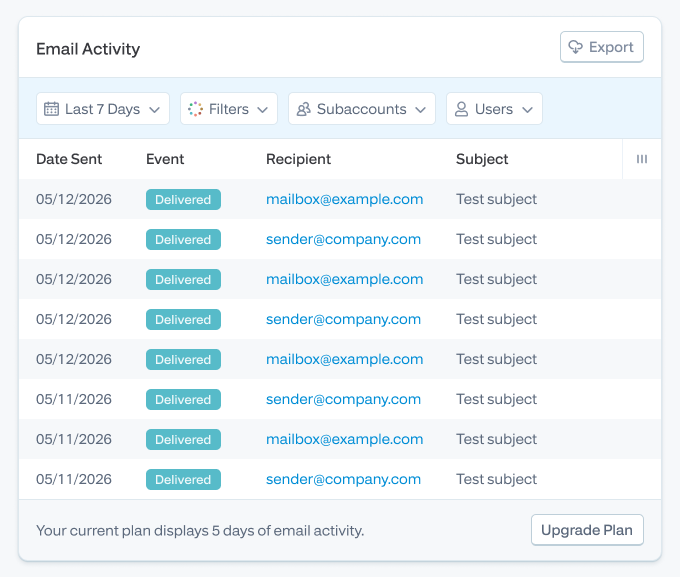
A clean outbox isn’t proof of delivery. The message may have left your machine and then been rejected, bounced, or held by the recipient server.
If you’re sending through SMTP2GO, every message shows up in Reports > Activity. Click the recipient address. The Timeline tab tells you exactly what happened: accepted by us, attempted to the recipient server, the SMTP response code we got back, whether it was delivered, soft-bounced, hard-bounced, or rejected.
If you’re sending through Microsoft 365, check the message trace in the Exchange admin center. If you’re on Google Workspace, the Email Log Search in the Admin console does the same job. For most ISP-provided email, the logs aren’t accessible to end users, which is one of the reasons people move to a proper relay in the first place.
If the trace says the message was delivered but the recipient swears it never arrived, check our missing emails troubleshooting guide. The answer is usually spam filtering, forwarding rules, or a downstream archiving system intercepting the message after delivery.
Common error codes around stuck emails
A few of these turn up in Outlook’s error dialog or in your mail logs when a message refuses to leave. Quick translation:
- 0x800CCC0E: Outlook can’t connect to the outgoing server. Usually a port block, firewall, or wrong server name.
- 0x80042108: Same root cause as above. The TCP connection to the SMTP server failed.
- 0x800CCC78: Sender address rejected. Your “from” address isn’t authorized on the server you’re sending through.
- 550 relay access denied: The server thinks you’re trying to relay unauthenticated. Usually a credentials or domain verification issue. See our email delivery errors explainer for a deeper walkthrough.
- 421 service unavailable: Temporary throttling. The receiving server is asking you to slow down. Retries usually clear this.
- 451 / 4.7.1: Temporary rejection, often greylisting or reputation-related. Worth checking your sender reputation if it persists.
- 503 5.5.1: Sequence error. The SMTP conversation went out of order, usually because authentication didn’t happen when it should have.
When this keeps happening
A one-off stuck email is just life. A pattern of stuck emails, especially across multiple users or coming from an app or device, is a signal you need infrastructure built for it.
This is the part most people miss. If you’re an MSP managing dozens of clients on hosted mail and their copiers stop sending every few weeks, or you’re a SaaS founder whose transactional notifications back up regularly, you’re spending real time on a problem that ought to be solved at the relay layer. Group IMD’s Will Beattie put it well after six years with us: “SMTP2GO has grown with us over the past 6 years as we’ve gone from sending 10,000 emails a month to over 1 million emails a month. As an SaaS provider, our customers expect that our service ‘just works’ and the outgoing email is held to that same standard.”
ThinkPorch came to us after AWS SES took too long on a support ticket. GSK uses us for time-critical manufacturing notifications. The common thread isn’t volume. It’s the need for email that just leaves the queue, every time, with a dashboard you can actually look at when it doesn’t.
If you’ve been chasing this for a while, it’s worth seeing what’s on offer. Compare SMTP2GO to AWS SES, SendGrid, Mailgun, and Postmark, or read why customers switched from other providers.
FAQ
Why is my email going to the outbox and not sending?
The most common causes are a network or port block, an oversized attachment, Outlook being in Work Offline mode, an authentication issue, or a locked message. Work through the 5-step diagnostic flow above to find which applies to you.
How do I force an email out of the outbox?
Open the stuck message, add a space at the end, and click Send. If that doesn’t work, drag it to Drafts, reopen, and resend. If it still won’t send, restart Outlook and check that Work Offline isn’t toggled.
Can a stuck email cause my other emails to back up?
Yes. If an oversized attachment or authentication failure is parking the first message, Outlook often waits to retry the queue in order. Move the stuck message out of the Outbox folder (drag to Drafts), and the rest should start sending.
Why does the same email keep getting stuck?
Usually it’s the message itself. The recipient address is invalid, the attachment is too large for the receiving server, or the body content is being flagged. Send a stripped-down version (plain text, no attachment, single recipient) to confirm.
How do I know if it’s the message, my Outlook, or my network?
Try sending from your provider’s webmail in a browser. If webmail works and Outlook doesn’t, it’s a client issue. If webmail also fails, it’s an account or network issue. Then run a port test (Test-NetConnection your.smtp.server -Port 587) to confirm whether the network is letting SMTP through.
Should I install a PST repair tool?
Almost certainly not. A stuck outbox is rarely caused by file corruption. PST repair tools fix a different problem (Outlook refusing to open, missing folders, profile errors). Try the diagnostic flow first.
Ready for email that actually leaves the outbox?
Try SMTP2GO free for as long as you like. Paid plans available for over 1,000 emails/month.
About the author

Charlie Abrahamson
Charlie is CEO and co-founder of SMTP2GO. He started the company in 2006 after a trip to Argentina left him locked out of his own email (every internet café and local ISP blocked his attempts to send). Twenty years later, SMTP2GO delivers email for businesses around the world from its Christchurch, New Zealand base. Charlie has personally configured SMTP relays, debugged deliverability incidents, and led migrations for senders ranging from small businesses to enterprises moving off AWS SES, SendGrid, Mailgun, and Postmark. SMTP2GO is ISO 27001 certified, GDPR compliant and an M3AAWG member.